



Use the OSS settings in Flexible Invoices for WooCommerce PRO to configure VIES verification, VAT exemption handling, location evidence, and tax descriptions on documents.
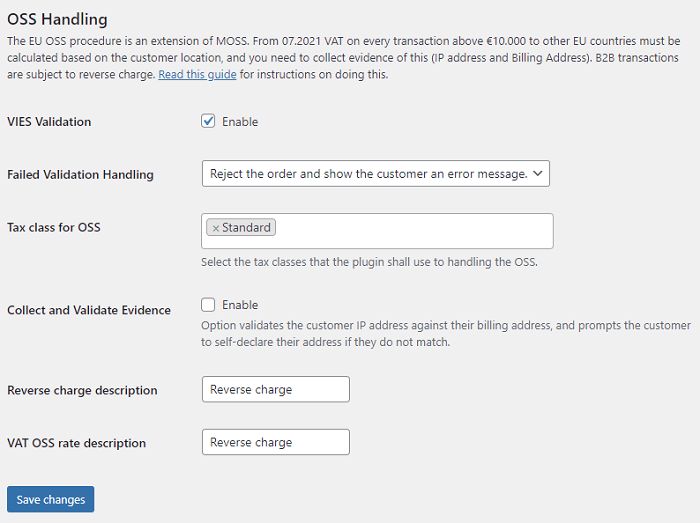
Go to Invoices → Settings → WooCommerce → OSS. Click Save changes after editing the settings.
Before you start#
- Enable taxes in WooCommerce and configure the applicable tax rates and product tax classes in WooCommerce → Settings → Tax.
- Enable the VAT number field in Invoices → Settings → WooCommerce → Checkout. If customers choose whether to request an invoice, they must request one before their VAT details are used.
- Check the WooCommerce Calculate tax based on setting. The plugin uses the relevant billing or shipping country and VAT number when determining exemption.
- For Checkout Blocks, make sure the plugin's invoice block is present on the checkout page.
These options work with WooCommerce tax calculations. Selecting tax classes here does not create country tax rates or change the tax class assigned to products.
VIES Validation (PRO)#
Enable VIES Validation to check entered EU VAT numbers against the VIES service during checkout. WooCommerce taxes must be enabled for this verification to run.
This is separate from Validate VAT Number in the Checkout settings, which performs local format checks. If both are enabled, local validation runs before the online VIES check.
For a customer in another EU country, a valid VAT number can result in VAT exemption when the cart contains a product in one of the selected OSS tax classes. The plugin applies exemption to the WooCommerce customer/cart; it does not limit exemption to individual lines from those classes.
The current integration does not remove VAT for customers in the store's base country through these settings. It also does not automatically exempt non-EU customers. The former Remove VAT for Businesses in Your Base Country option is no longer available.
Failed Validation Handling (PRO)#
Choose how the plugin handles an unsuccessful VIES check or an unavailable VIES service:
- Reject the order and show the customer an error message. – block checkout until the customer resolves the validation issue or selects the VAT confirmation checkbox offered by the plugin. A customer who confirms the number can continue, and VAT may be removed when the other exemption conditions are met.
- Accept the order, but do not remove VAT. – allow checkout to continue after a VIES failure and keep VAT.
- Accept the order and remove VAT. – allow checkout to continue after a VIES failure and permit VAT exemption when the other conditions, including country and OSS tax-class requirements, are met.
The first option is not an unconditional requirement for a positive VIES response: the current checkout includes a customer self-declaration path. Review this behavior when choosing your store's validation policy.
A required but empty VAT number is still a checkout error. The failure-handling selector does not disable the separate required-field check.
Tax class for OSS (PRO)#
Select one or more WooCommerce tax classes that identify products handled by the plugin's OSS logic. The list includes Standard and the additional tax classes configured in WooCommerce.
The cart must contain at least one product assigned to a selected class for the plugin's VAT exemption and location-evidence checks to apply. If no class is selected, those cart-dependent checks do not run.
Configure the actual country rates in WooCommerce → Settings → Tax and assign the appropriate class to each product separately.
Collect and Validate Evidence (PRO)#
Enable this option to compare the country detected from the customer's IP address with the billing country. It requires VIES Validation and applies when the cart contains products in the selected OSS tax classes.
For applicable EU consumer orders, a mismatch prompts the customer to confirm their location before completing checkout. The check compares countries; it does not verify the street address or postcode.
The check is skipped for customers outside the EU and for transactions recognized by the plugin as B2B. If geolocation does not return an IP country, the absence of that country alone does not trigger the mismatch error.
The plugin records VAT validation and customer declarations with the order. The integration supports both the classic checkout and Checkout Blocks.
Reverse charge description (PRO)#
Enter the reverse-charge text to display on applicable invoices and proforma invoices. The default is Reverse charge.
In classic templates, the plugin adds this text after the notes when VIES handling is enabled, the document is linked to an order, its tax total is zero, and the order meets the plugin's reverse-charge conditions. It is not added to every zero-tax document.
For a Gutenberg invoice template, check the generated document and include any required wording in the template or document notes. The classic after-notes hook does not by itself place this text in a block template.
VAT OSS rate description (PRO)#
Enter a custom tax-rate label for document items created from VAT-exempt orders. When the linked order is marked as VAT exempt, the plugin uses this description for its special zero-rate entry.
This setting changes the tax-rate description on the document. It does not define a destination country's VAT percentage or replace the WooCommerce tax-rate configuration.
Check the checkout configuration#
Provide the address information needed by your WooCommerce tax rules, including country, state, city, and postcode where applicable. If taxes are based on a separate shipping address, check the receiver's country and VAT number as well as the buyer's details.
Before using the configuration for customer orders, check the checkout totals and resulting document for a domestic order, a cross-border EU order with a valid VAT number, an unsuccessful VIES check, and a consumer order.
More information#
For a broader setup walkthrough, see how to configure OSS in WooCommerce. Use the settings and behavior described above when configuring the current plugin version.