



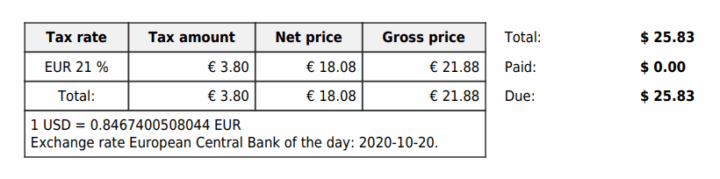
Flexible Invoices for WooCommerce PRO can add a currency conversion table to an invoice. The table shows tax rates and converted VAT, net, and gross amounts grouped by tax rate.
The conversion is additional information on the document. It does not change the invoice's main currency, the WooCommerce order currency, or the amount charged to the customer.
Enable VAT conversion in classic templates (PRO)#
- Go to Invoices → Settings → WooCommerce → General.
- Choose a display mode in Currency exchange table.
- Select the target currency in Exchange to currency.
- Click Save changes.
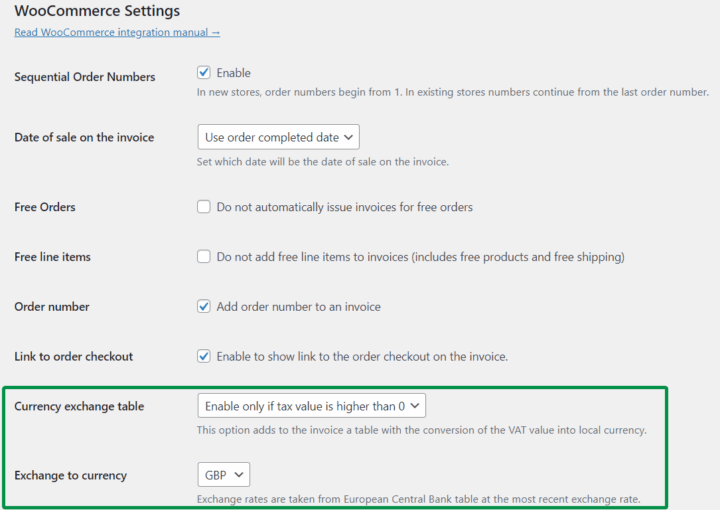
Currency exchange table has three options:
- Disable – do not display the table.
- Enable – enable the table without requiring a nonzero document tax total.
- Enable only if tax value is higher than 0 – display the table only when the document has a nonzero tax total.
A table is displayed only when exchange data and eligible document items are available. Selecting Enable does not guarantee a table on every invoice.
Exchange to currency (PRO)#
Choose the currency for the converted amounts. This can be the store's main currency, but the conversion uses the currency selected here rather than automatically using the store currency.
For example, if an invoice is issued in EUR and Exchange to currency is set to PLN, the additional table shows converted amounts in PLN. The invoice itself remains in EUR.
The document currency and target currency must differ. The plugin does not generate conversion rows when both currencies are the same. Exchange data must also be available for the selected currency pair.
Exchange rates and dates#
The plugin obtains exchange rates from the European Central Bank reference rate tables.
By default, it looks for a rate for the day before the document's sale date. If the downloaded ECB data has no entry for that date, it uses the latest available entry on or before that date. The classic conversion table includes the rate used and its date.
The resulting table can look like this:
Conversion data is saved with the document. Changing the target currency in the settings does not automatically recalculate every previously issued invoice. Check the generated PDF after changing the configuration.
Using the Gutenberg invoice editor#
If (Beta) Gutenberg Invoice Editor is enabled, the Currency exchange table display selector is hidden. Add the conversion table to the active template instead:
- Go to Invoices → Settings → Invoice Template and open the active template for editing.
- Add the PRO Table of conversion block where the converted amounts should appear.
- Save the template.
- Select Exchange to currency in Invoices → Settings → WooCommerce → General and save the settings.
The block displays converted amounts when exchange data and eligible items are available. It does not use the classic template's Currency exchange table visibility selector.
Do I need a currency switcher?#
A currency switcher is not required for the conversion table. The plugin reads the currency saved on the document and converts eligible amounts into the selected target currency.
If you use a multicurrency plugin, check that the invoice contains the correct order currency and amounts before checking the conversion table.
Why is the conversion table missing?#
- Check that the document currency differs from Exchange to currency.
- For classic templates, check that the table is enabled and that the document meets the selected tax-total condition.
- For Gutenberg templates, check that the active template contains a Table of conversion block.
- Check the document's sale date and whether ECB data is available for the currency pair and period.
- Check that the document contains eligible items. The conversion code skips zero-tax-rate and zero-net-price items, so a document containing only such items may have no conversion rows.
- If exchange data cannot be downloaded, check the store's connection to the ECB service.