



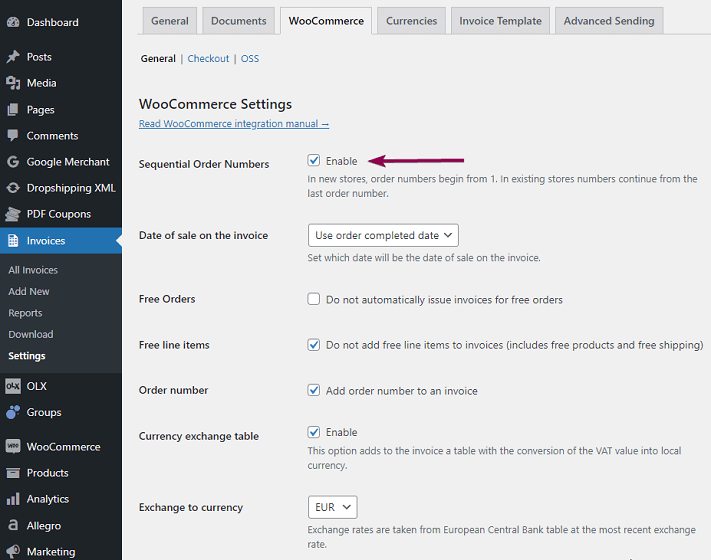
Go to Invoices > Settings > WooCommerce > General. Check the Sequential Order Numbers option, which allows you to give WooCommerce orders sequential order numbers.
Next, go to Invoices > Settings > Documents > Invoice and delete the contents of the Prefix and Suffix fields. In the next number field, add the next order number.
If you have (Beta) Gutenberg Invoice Editor enabled (in Invoices > Settings > Invoice Template) this settings will be available within the template editor. In that case, please refer to this article.
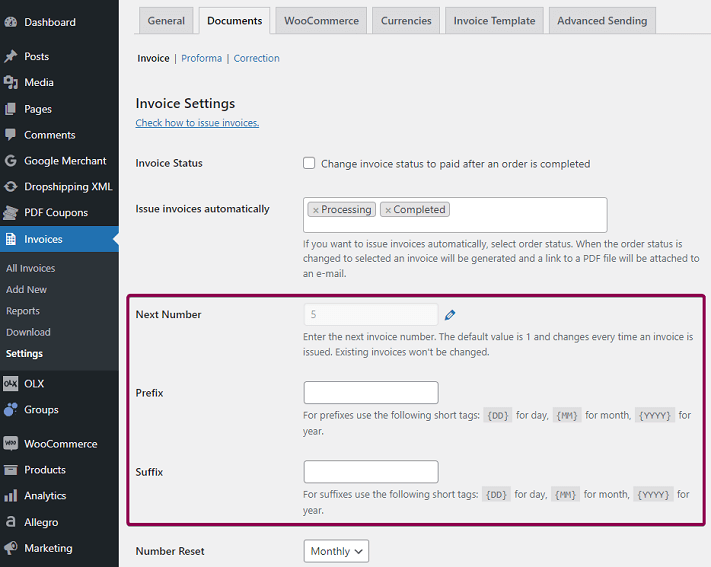
With these settings, the next order number will be added in the invoice title. Read more about WooCommerce sequential order numbers.