





To add EU VAT rates to WooCommerce without typing twenty-seven rows by hand, create a new tax class in WooCommerce → Settings → Tax, import a prepared CSV into that class, then assign the class to the products it applies to. The three files below cover the EU, the United States, Canada, Australia and more, and they arrive by email after signing up. One step before you rely on them: VAT rates change, so verify the ones that matter to your store against the official source after importing. This guide covers the import, the threshold rule that decides whose VAT you charge in the first place, and what to check once the rows are in.
- Whose VAT do you charge? The rule in practice
- How to configure tax rates in WooCommerce
- Download the tax rates (EU, USA, Canada, Australia and more)
- Import the rates from the CSV file
- Verify the rates after importing
- Frequently asked questions
- Read more about taxes and invoicing in WooCommerce
Whose VAT do you charge? The rule in practice
Before importing any rates, it is worth knowing which ones your store actually needs, because the answer decides whether you need one rate or twenty-seven.
Since 1 July 2021 the EU applies a single threshold of EUR 10,000 per year, counted across all your intra-EU distance sales to consumers in other member states, both goods and digital services together.
| Situation | VAT you charge |
|---|---|
| B2C in your own country | Your country’s rate |
| B2C to other EU countries, under EUR 10,000 a year in total | Your country’s rate |
| B2C to other EU countries, over the threshold | The customer’s country rate, declared through OSS |
| B2B with a valid EU VAT number | Zero rate, with reverse charge noted on the invoice |
That threshold is why a small store selling occasionally abroad needs one rate, and a store that crosses it needs the whole table. Read more on the European Commission’s VAT e-commerce page.
For B2B, the zero rate only applies when the customer provides a valid EU VAT number. See how to add the VAT EU number field in WooCommerce, because the default checkout does not have one.
How to configure VAT tax rates in WooCommerce
Four steps:
- Create a new tax class.
- Download the CSV with the rates you need.
- Import the file into that class.
- Assign the class to the products it applies to.
Create a new tax class
Go to WooCommerce → Settings → Tax:
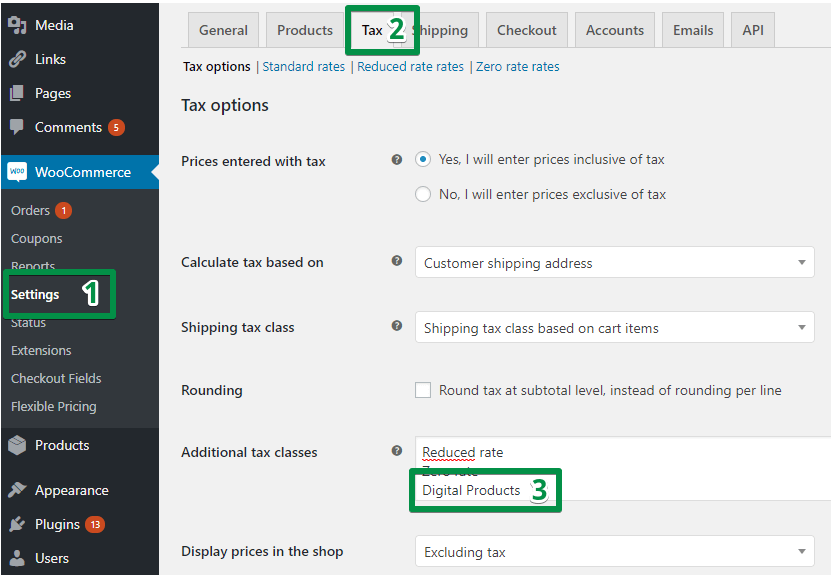
Add an additional tax class. The name is internal, so call it whatever makes sense to you. In this example it is Digital Products. Customers never see it.
Once saved, a new link appears for that class:

Why a separate class rather than importing into Standard rates: a class is how you keep different kinds of products on different rates. Put the EU table into its own class and your domestic standard rate stays untouched, which also makes the import reversible.
Download the tax rates
The files have a simple structure, matching the columns WooCommerce expects:
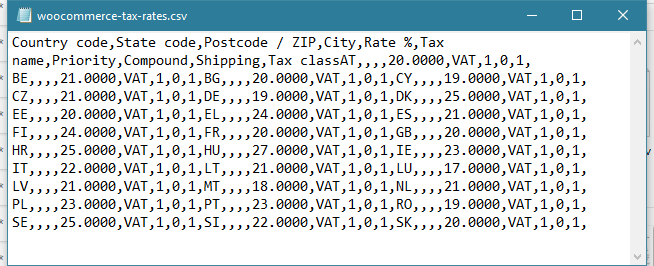
You get three files: EU VAT rates, United States and Canada, and Australia and other countries, plus a PDF with the import instructions. They arrive by email after signing up below, along with new articles about WooCommerce, taxes and invoicing.
The EU rates were compiled from the Your Europe service. Member states change their rates, so treat the file as a starting point that saves you the typing, not as a legal source. The verification step below takes two minutes and is worth doing every time you import.
Import the rates from the CSV file
Go to WooCommerce → Settings → Tax → your tax class, and use the import button below the table:
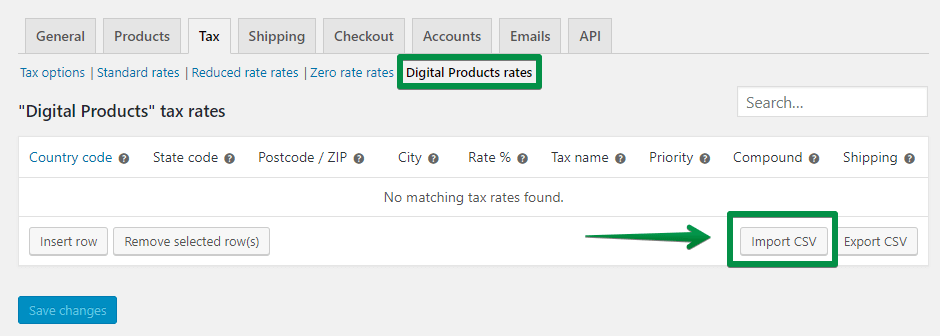
Select the file and click Upload file and import.
Two things that go wrong here. Import works per tax class, so opening the wrong class before importing puts the EU table on top of your standard rates, and nothing warns you. And if the class already has rows, export them to CSV first: it takes a second and it is the only backup you get.
Assign the class to your products
Open the product settings and pick the new tax class in the Tax class option:
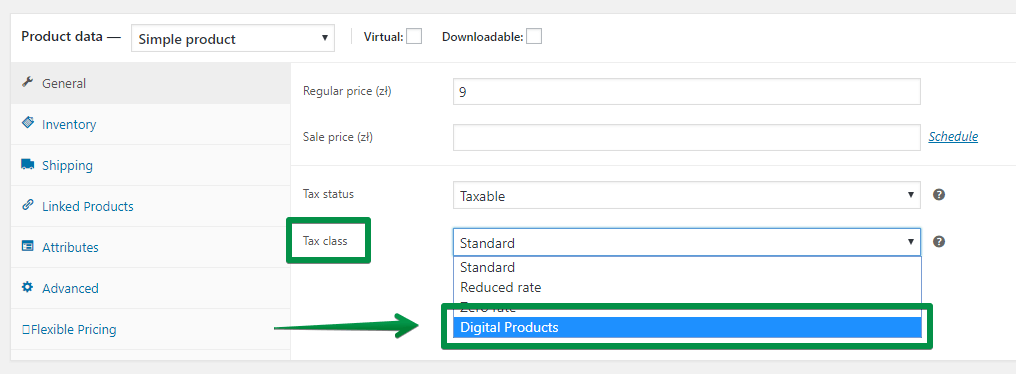
For more than a handful of products, use bulk edit:
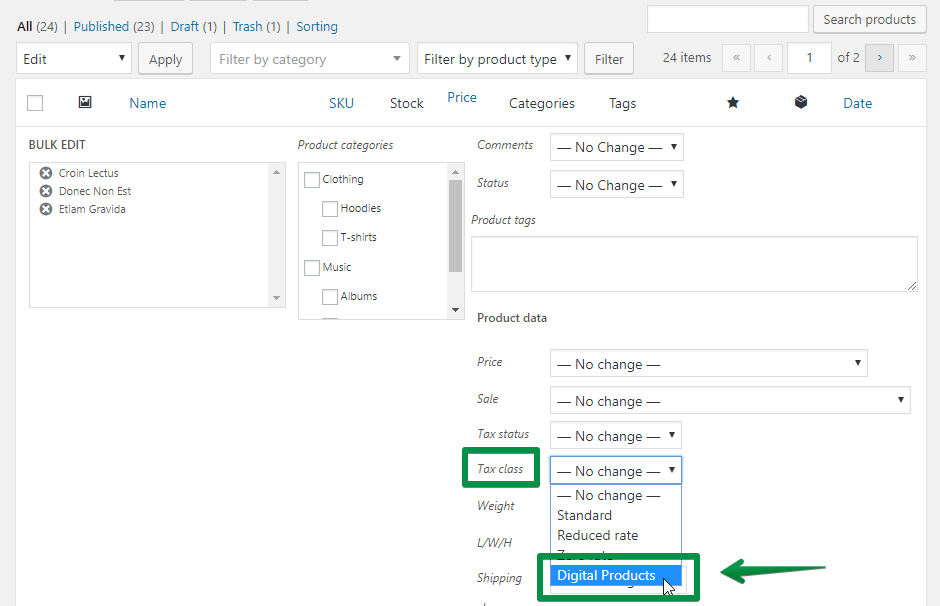
A class with rates in it does nothing until products are assigned to it. A product left on Standard rates keeps using the standard table, which is the usual reason an import appears to have had no effect.
Verify the rates after importing
Three checks, in this order.
Open the class and confirm the row count matches the file. A truncated import is more common than a failed one, and it looks identical to a successful one until you scroll.
Check the countries you actually sell to against the current official figures. You do not need to verify twenty-seven rows, only the handful that will appear on real invoices. The Your Europe page linked above is the quickest reference.
Place a test order to a customer address in one of those countries and look at the tax line in the cart. Rates in a table and tax on an order are two different things, and the gap between them is usually the Shipping checkbox or a missing country code.
Then put a reminder in the calendar. Rates change at the start of a tax year more often than at any other time, and nobody notices a wrong rate until an accountant does.
Summary
Importing a prepared CSV turns an hour of typing into two minutes, as long as three things are right: the file goes into its own tax class rather than on top of Standard rates, the products are then assigned to that class, and the rates for the countries you actually sell to are checked against the official source afterwards. Before any of it, work out whether you need the full table at all: under the EUR 10,000 threshold you charge your own country’s VAT and one rate is enough.
Frequently asked questions
Which VAT rate do I charge on EU sales?
Your own country’s rate while your total intra-EU B2C sales stay under EUR 10,000 a year. Above that, the customer’s country rate, declared through OSS. For B2B with a valid VAT number, the zero rate with reverse charge.
Does the EUR 10,000 threshold cover goods or only digital services?
Both, counted together. Since 1 July 2021 a single threshold applies to intra-EU distance sales of goods and to telecommunications, broadcasting and electronic services combined.
Can I import tax rates into WooCommerce from a CSV?
Yes. Each tax class has its own import and export buttons below the rates table. The import applies to the class you have open, not to the whole store.
Should I import into Standard rates or a new class?
A new class. It keeps your domestic rate separate, makes the change reversible, and lets you apply the imported table only to the products that need it.
I imported the rates and nothing changed. Why?
Usually because no products are assigned to the new class, so they still use Standard rates. Check the product’s Tax class field, and check that the Shipping box is ticked on at least one row if delivery should be taxed.
Are the rates in the file current?
They were accurate when compiled, but member states change rates. Verify the countries you sell to against the official source after importing, and again at the start of each tax year.
How do I update a rate that has changed?
Edit the row in the tax class table, or re-import a corrected file. Existing orders and invoices keep the rate that applied when they were issued, which is the correct behaviour.
Do I need all twenty-seven EU rates?
Only if you are above the threshold or expect to cross it. Below it, one rate covers every EU sale, and importing the full table adds rows that do nothing.
More about taxes and invoicing in WooCommerce
- WooCommerce Taxes Guide →
- Setting tax rates for EU invoices →
- How to set taxes for OSS →
- How to invoice in the European Union using WooCommerce →
- How to invoice in WooCommerce with a free plugin →
The Flexible PDF Invoices for WooCommerce plugin issues invoices with the right VAT rate, and in the PRO version handles OSS, reverse charge and automatic EU VAT number validation, so the rate on the document follows the rule above without anyone checking it by hand.
