



How to download documents#
Bulk downloading#
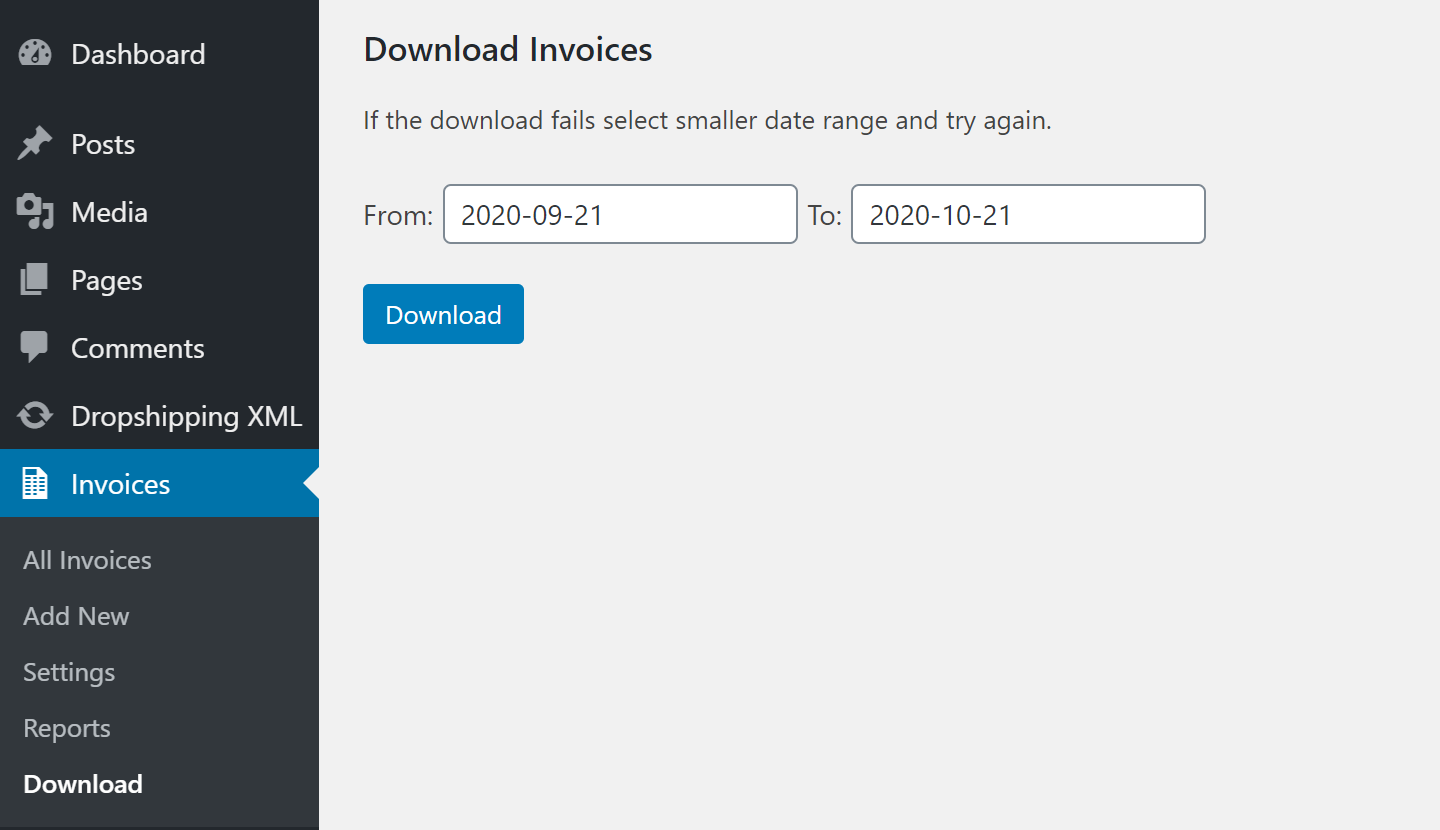
If you want to download multiple documents at once, go to Invoices → Download. Select the date range and click Download. The plugin will download the documents as a ZIP file.
Manual downloading#
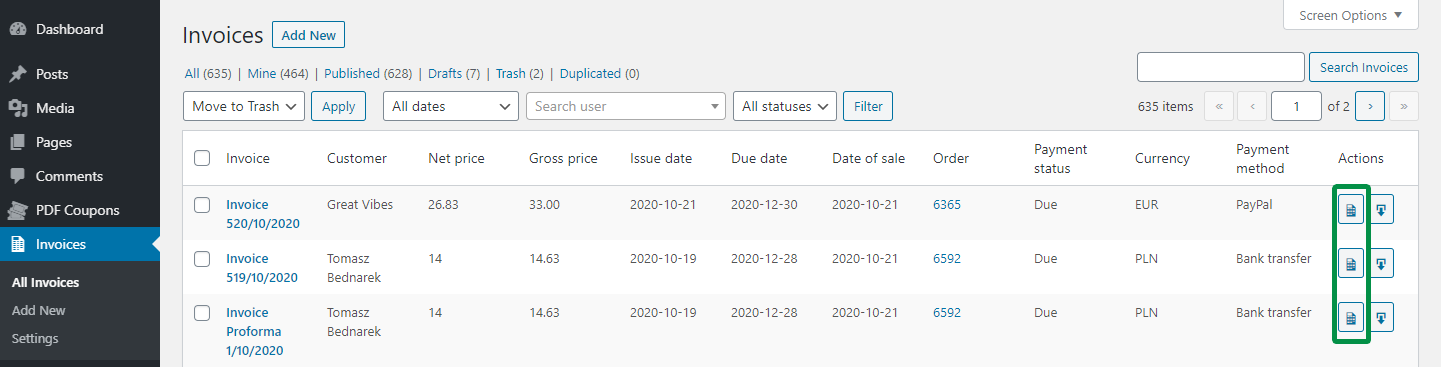
After documents are generated, the document link and the Download button will appear in the locations described below. You can open a document from its link or download it in PDF format.
You can download documents manually from the following places:
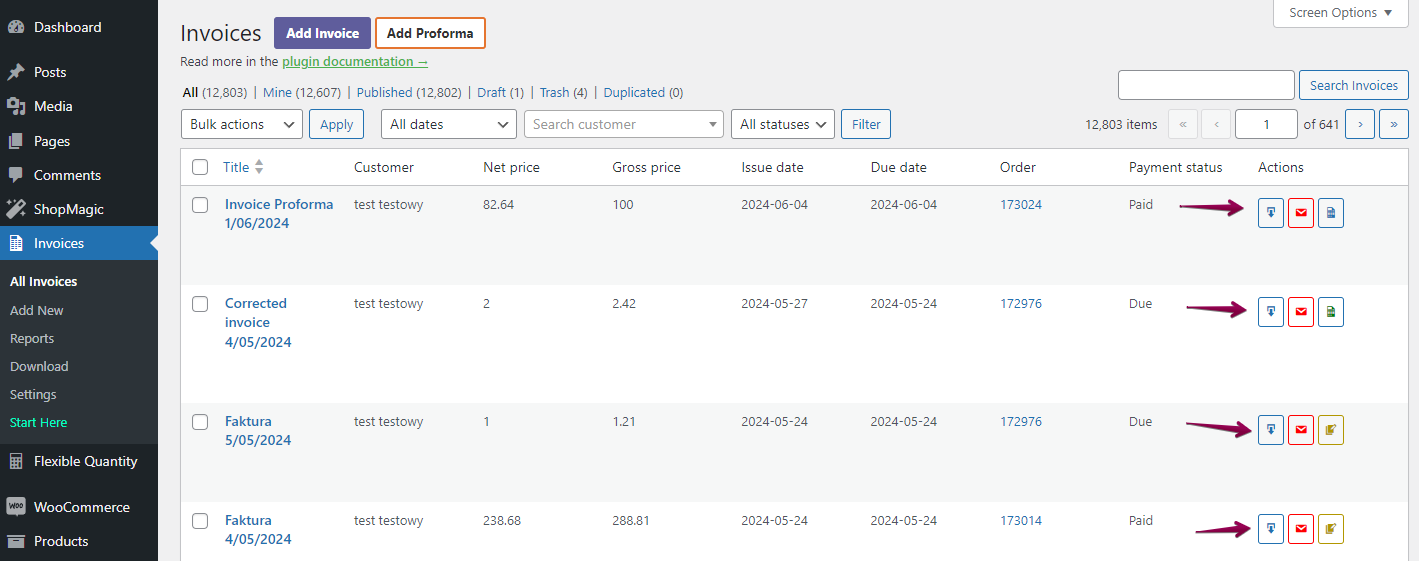
- Invoices → All Invoices → Actions column → Download button.
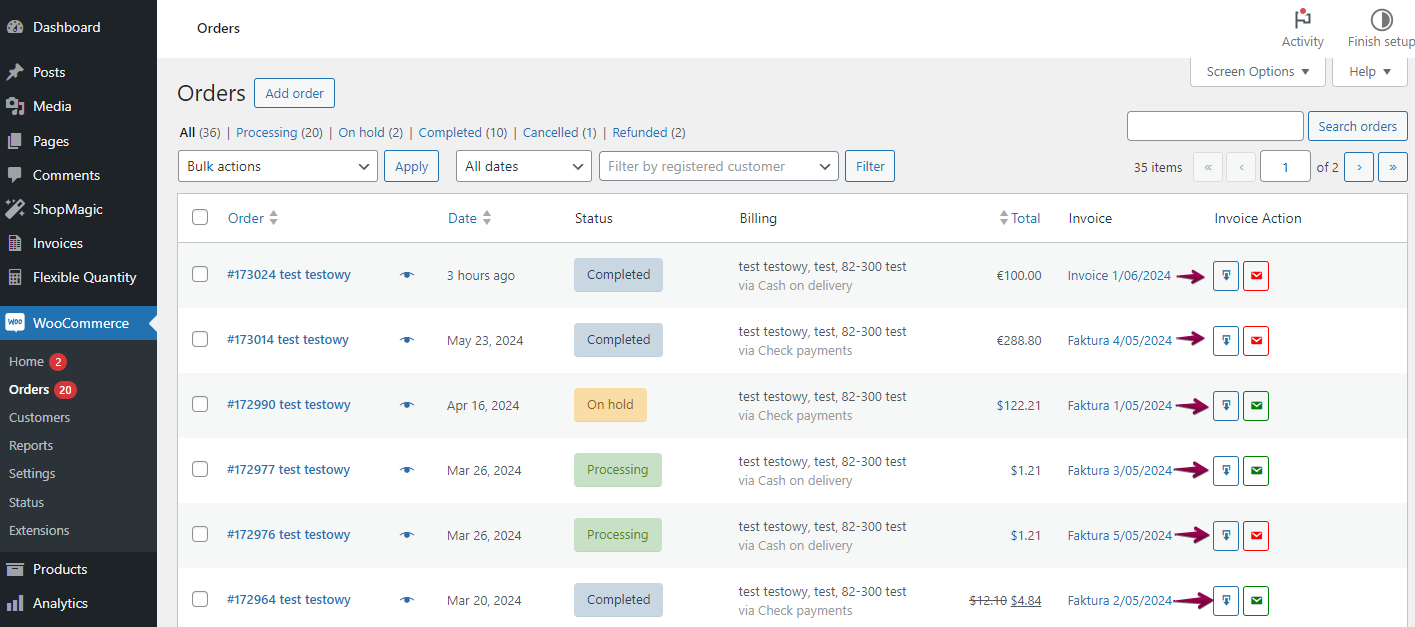
- WooCommerce → Orders → Invoice Action column → Download button.
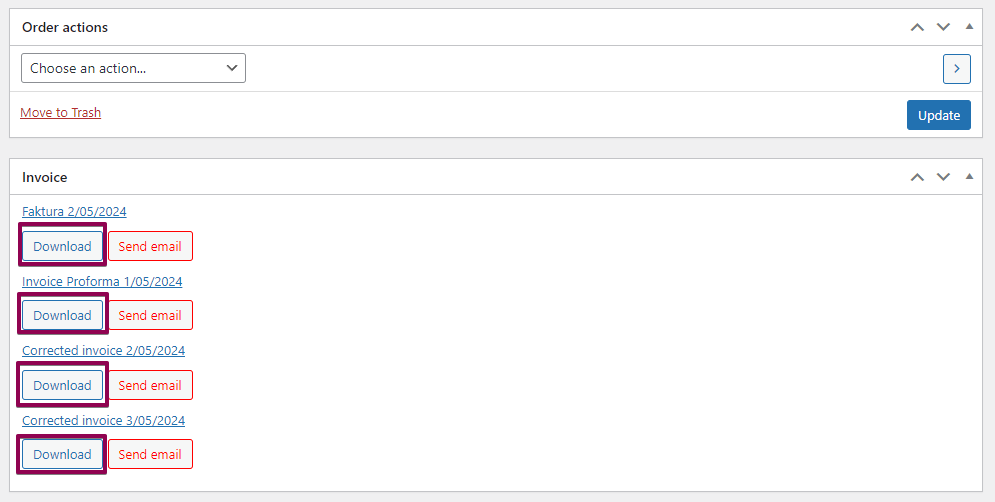
- Order edit screen → Invoice metabox → Download button.
Printing and downloading Corrections (PRO)#
After you complete a WooCommerce order refund and refresh the order edit page, the correction number will appear in the Invoice metabox. The Send email and Download buttons will also appear. You can send or download corrections in PDF format. You can also open a correction by clicking its document link.
How to print documents#
You can download a document and print the PDF file. You can also open the document from its link and use your browser printing option.
You can also download multiple documents at once to speed up printing.