



Invoice Template List#
Enable (Beta) Gutenberg Invoice Editor in the Invoice Template settings tab to edit document templates using blocks.
With the block editor enabled, document numbering and field display settings are managed directly in the template. These include SKU, tax visibility, the recipient address, signatures and page numbering.
The editor is still labelled Beta. If you have feedback or suggestions, contact our support team.
The template list provides the following actions:
- Edit — open the template in the block editor.
- Preview — preview the template.
- Duplicate — create a copy of the template.
- Delete — remove the template.
The Enabled column shows whether a template is enabled.
Invoice Template Settings#
Open a template to edit its layout and settings. Select a block to change its content and appearance, or use the document settings sidebar to configure general options and document numbering. Save your changes when you finish.
General settings#
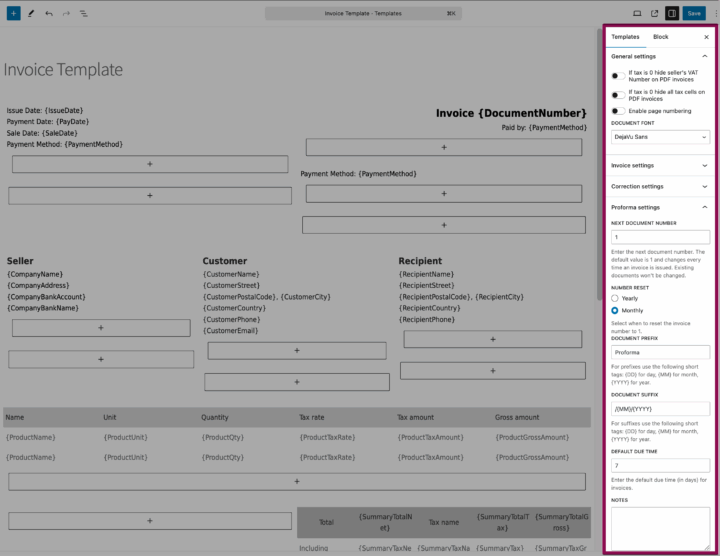
- Recipient shipping address — hide the Recipient block when the shipping address is the same as the customer's billing address.
- Seller's VAT Number on Invoices — hide the seller's VAT number on PDF invoices when tax is zero.
- Tax Cells on Invoices — hide tax cells on PDF invoices when tax is zero.
- SKU — enable the use of SKU numbers on invoices.
- Enable page numbering — add page numbers to the generated document.
- Document font — select the font used in the document.
To display SKU numbers in the products table, also make sure the SKU column is visible in that block's settings.
Invoice settings#
- Next document number — set the next invoice number. The default starting number is 1, and the counter changes as invoices are issued. Changing this setting does not renumber existing documents.
- Number reset — choose Yearly, Monthly or None to control when the counter resets to 1.
- Document Prefix — enter the text placed before the sequential number.
- Document suffix — enter the text placed after the sequential number.
- Default Due Time — enter the default payment term in days.
- Notes — enter notes to display on generated documents.
Prefixes and suffixes support these date placeholders:
{DD}— day.{MM}— month.{YYYY}— year.
For example, use the prefix Invoice and suffix /{MM}/{YYYY} to create a number such as Invoice 1/10/2026.
If you are moving from another invoicing system, set the next number to continue your existing numbering sequence.
Correction settings — PRO#
Correction invoices have their own numbering settings: Next document number, Number reset, Document Prefix and Document suffix. You can also configure Default Due Time and Notes.
The reset options and date placeholders work in the same way as for invoices.
For example, use the prefix Credit Note and suffix /{MM}/{YYYY} to create a number such as Credit Note 1/10/2026.
Proforma settings — PRO#
Proforma invoices also have separate settings for Next document number, Number reset, Document Prefix, Document suffix, Default Due Time and Notes.
For example, use the prefix Proforma Invoice and suffix /{MM}/{YYYY} to create a number such as Proforma Invoice 1/10/2026.
Invoice Blocks#
Use blocks to arrange document information, tables, images and custom text.
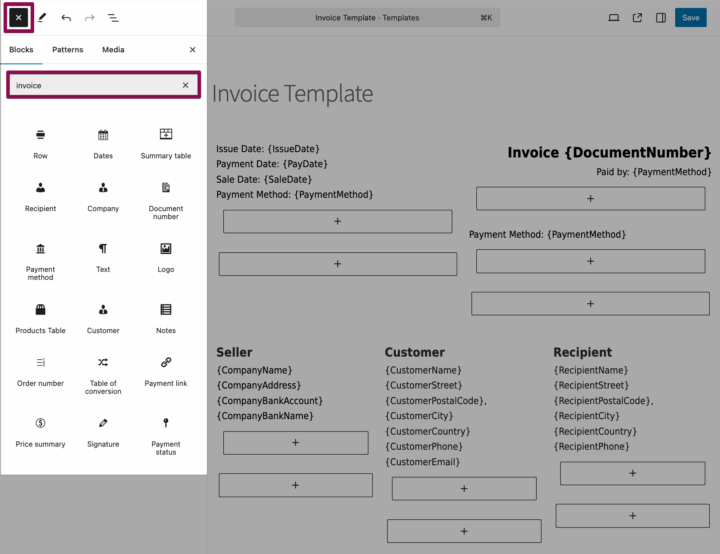
- Dates — document date information.
- Summary table — tax and document totals.
- Recipient — recipient details, including the shipping address.
- Company — seller details.
- Document number — the formatted document number, including its prefix and suffix.
- Payment method — the payment method recorded on the document.
- Logo — an image selected from the media library or uploaded for the template.
- Products Table — document line items.
- Customer — customer details.
- Notes — document notes.
- Order number — the number of the order linked to the document.
- Table of conversion — PRO — currency conversion information.
- Payment link — a clickable payment link for the associated order.
- Price summary — amounts such as the total, amount paid and amount remaining to pay.
- Signature — a signature section.
- Payment status — the invoice payment status.
- Row — a layout container for arranging document elements in columns.
- Text — custom text.
Blocks that use order information require a document linked to an order to display that information.
Editing Tables#
Select a table block to edit its columns and appearance. The available controls depend on the selected block.
Table Columns#
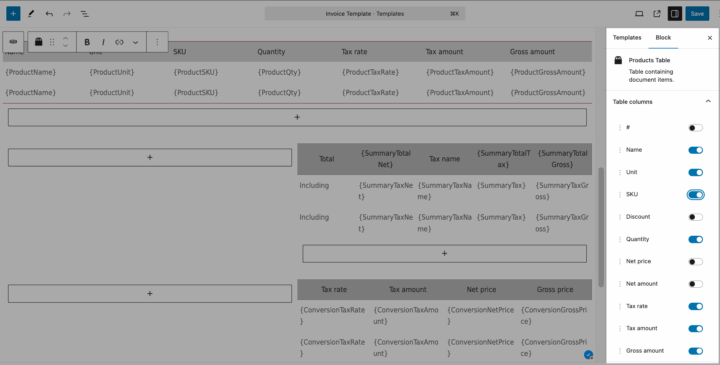
Use the table column settings to show or hide columns and change their order. The products table supports the following columns:
- #
- Name
- Unit
- SKU
- Discount
- Quantity
- Net price
- Net amount
- Tax rate
- Tax amount
- Gross amount
Table Appearance#
Use the header and body appearance settings to adjust text and background colors, font size, alignment and font style.
You can also configure table and cell borders, including their colors and widths. Body appearance settings include alternating row background colors.
Products Table Placeholders#
The products table uses the following placeholders for line-item values:
{Number}— line-item number.{ProductName}— product name.{ProductUnit}— unit.{ProductSKU}— SKU.{ProductDiscount}— discount.{ProductQty}— quantity.{ProductNetPrice}— net unit price.{ProductNetAmount}— total net amount for the line.{ProductTaxRate}— tax rate.{ProductTaxAmount}— tax amount.{ProductGrossAmount}— gross amount.
Editing Text Blocks#
Select a text block to edit its content and formatting. Depending on the selected block, its settings let you adjust:
- Text appearance — text color, background color, font size, alignment and font styles.
- Position — margins and padding.
- Borders — border color, width and radius.
Save the template and check the generated PDF after changing its layout or formatting.