



Automatic issuing (PRO)#
You may set automatic issuing documents (invoices and proforma invoices) upon reaching the specific WooCommerce order status (It's possible to choose more than one). You can speed that process by changing the status for more orders through Bulk Actions in the WooCommerce -> Orders Screen.
Read more about both settings in Invoice Settings, Proforma Settings, and Correction Settings.
Issuing Corrections (PRO)#
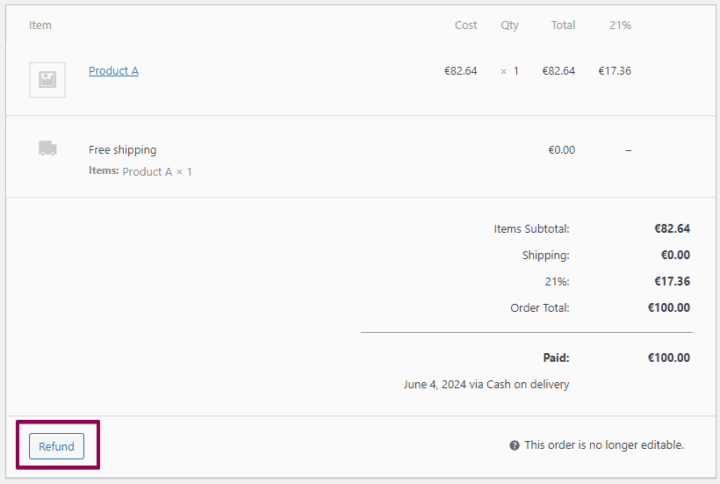
Corrections will be created and sent automatically for refunded WooCommerce orders. By going to Invoice → Settings → Documents → Correction, enable the Automatic Issue Corrections option, which will allow you to issue a document when an order is refunded.
For each subsequent refund of the same order, another correction can be issued.
The issue corrections option can also be changed to Manual. Corrections will be issued manually, with each subsequent order refunded.
Manual issuing#
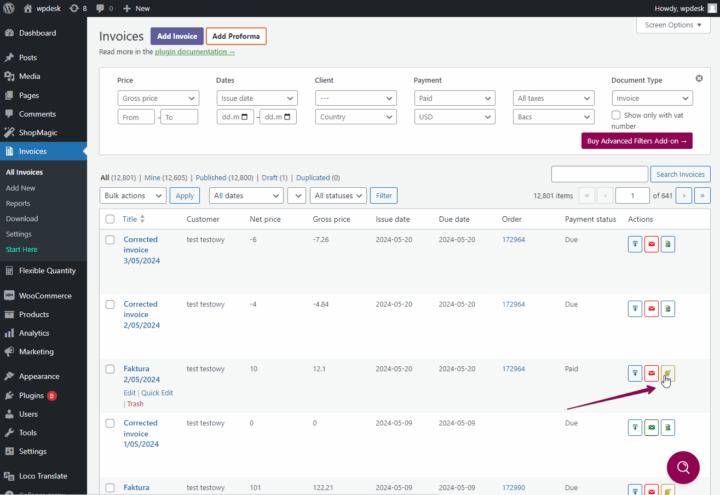
Going to the menu Invoices → All Invoices, search for the invoice you want to issue a correction. On the right side of the panel, under Actions, select the third icon in the row Create Corrections.
The correction edit panel is similar to the invoices and proformas panel, with the difference that, there are columns for before correction and after correction in the products section.
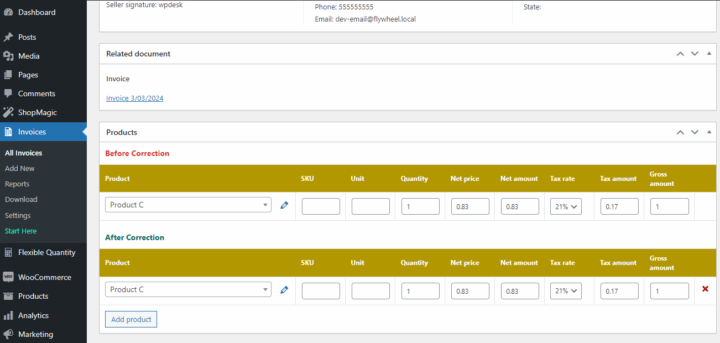
Make the changes in the product field, then select the Publish button.
Read more about manual issuing proforma and invoices and manual issuing corrections.
[faqs category="flexible-invoices-faq"]