


Invoice Template Settings#
Go to Invoices → Settings → Invoice Template to customize the information displayed on your invoices.
The settings below apply to classic invoice templates. If (Beta) Gutenberg Invoice Editor is enabled, manage the layout, document settings and individual blocks within the template editor instead. In that case, please refer to this article
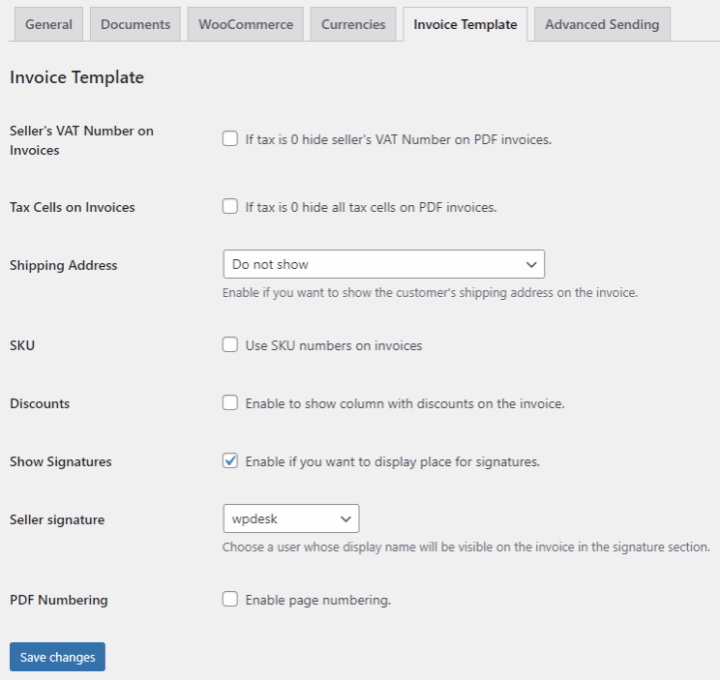
Seller's VAT Number on Invoices#
Enable this option to hide the seller's VAT number on PDF invoices when the tax amount is zero.
Tax Cells on Invoices#
Enable this option to hide tax-related cells on PDF invoices when the tax amount is zero.
Shipping Address — PRO#
Choose whether to display the customer's shipping address on the invoice:
- Do not show — hide the shipping address.
- Show customer's address — display the shipping address.
- Show customer's address if different from billing — display the shipping address only when it differs from the billing address.
SKU#
Enable this option to use product SKU numbers on invoices.
Discounts — PRO#
Enable this option to display a discount column on the invoice. Disabling it hides the separate discount column; it does not remove discounts from the order or change the invoice totals.
Show Signatures#
Enable this option to display a section for signatures on the invoice. The Seller signature setting appears when signatures are enabled.
Seller signature#
Select the user whose display name should appear in the seller's signature section. The list includes users with the Administrator, Editor or Shop manager role. If a user has no display name, the plugin uses their login name.
This setting displays the selected user's name; it does not add a handwritten signature image.
PDF Numbering#
Enable this option to add page numbers to PDF documents.
Click Save changes after editing the settings. Generate a PDF to check the result.
Styling Classic Templates#
Additional classic template appearance controls require the separate Advanced Templates for Flexible Invoices add-on and Flexible Invoices PRO.
With the add-on active, the appearance settings include:
- Layout — select a document layout.
- Text — configure the document body font, size and color.
- Heading 1 — style the invoice number.
- Heading 2 — style section headings.
- Heading 3 — style table column headings.
- Table design — adjust table border thickness and color, the header background and even-row background color.
Use Reset appearance to restore the default appearance settings.