





Flexible Invoices PRO creates a PDF invoice the moment a WooCommerce order reaches a status you choose, attaches it to the order email and stores it for download, with no action needed per order. The setup is two steps: install the plugin, then pick the triggering status in Invoices → Settings → WooCommerce. The free version does the same job manually, one order at a time, which is enough for a low-volume store. This guide covers automatic and manual invoicing, proformas and corrections, bulk downloads, and the one setting that decides whether your numbering stays clean.
In this article, you’ll learn how to:
- Create a PDF invoice in WooCommerce automatically
- Choose the order status that triggers the invoice
- Issue a proforma invoice and correction invoice in WooCommerce
- Download a PDF invoice in WooCommerce
- Send a PDF invoice in WooCommerce automatically
- Decide between the free version and PRO
- Benefit from the WooCommerce invoicing plugin for EU sales
- Frequently asked questions
How to create a PDF invoice in WooCommerce automatically?
Automatic invoicing is a feature of the PRO version of Flexible Invoices. Once it is active, the work is one setting.
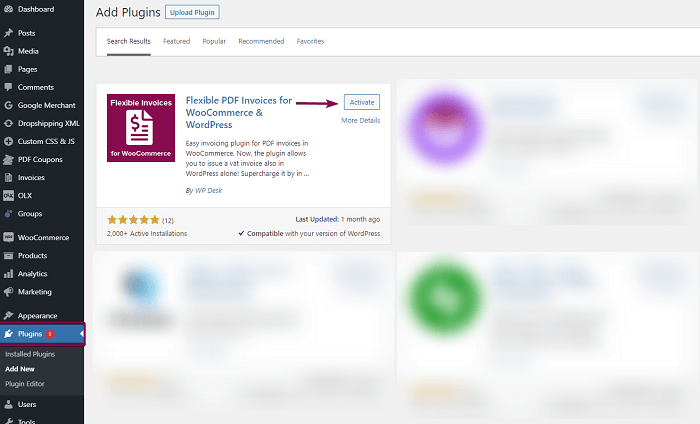
- Install and activate the plugin.
- Set the WooCommerce order status (or statuses) at which the invoice should be created:
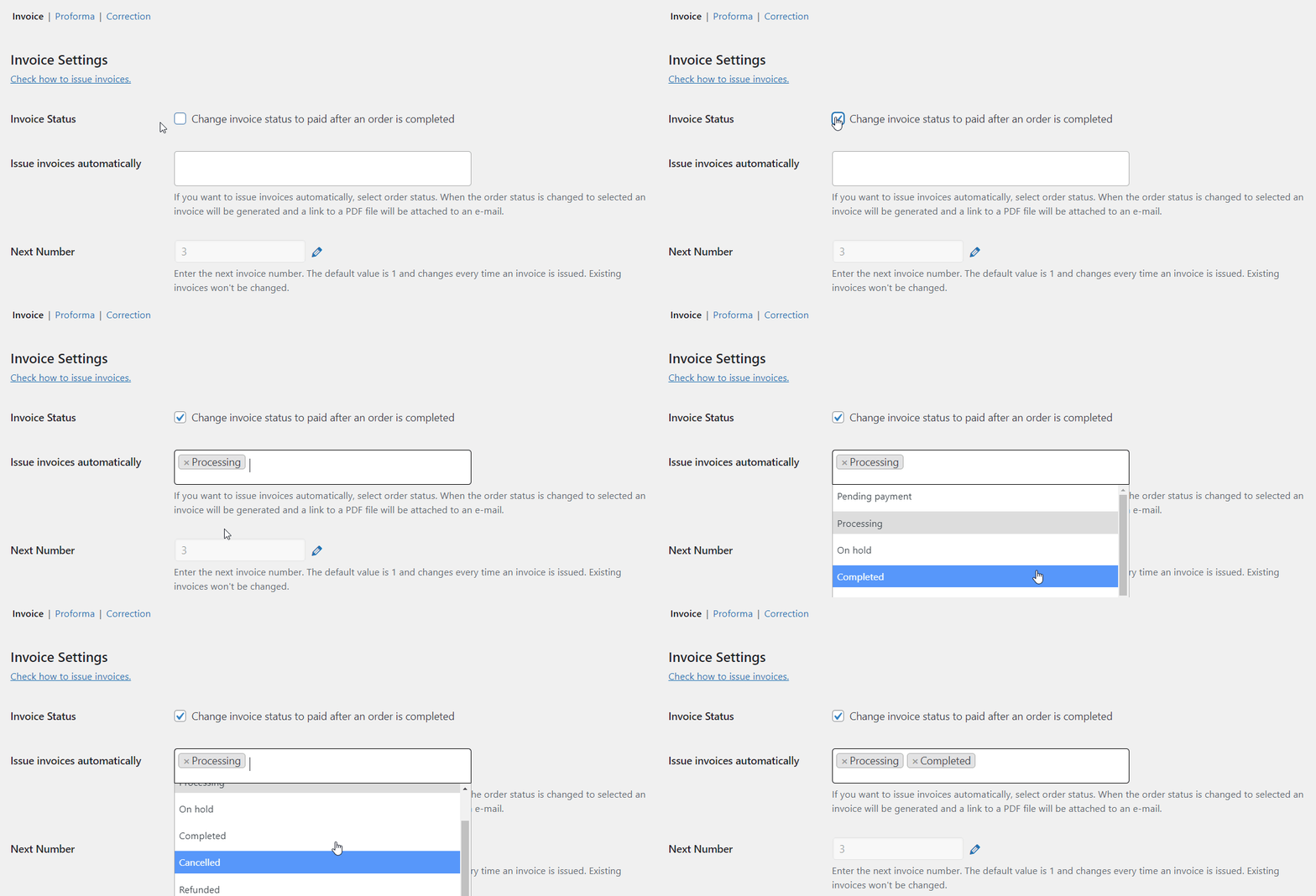
- From then on, every order that reaches that status gets a document, and you can still issue invoices manually at any time, including for sales that never passed through WooCommerce.
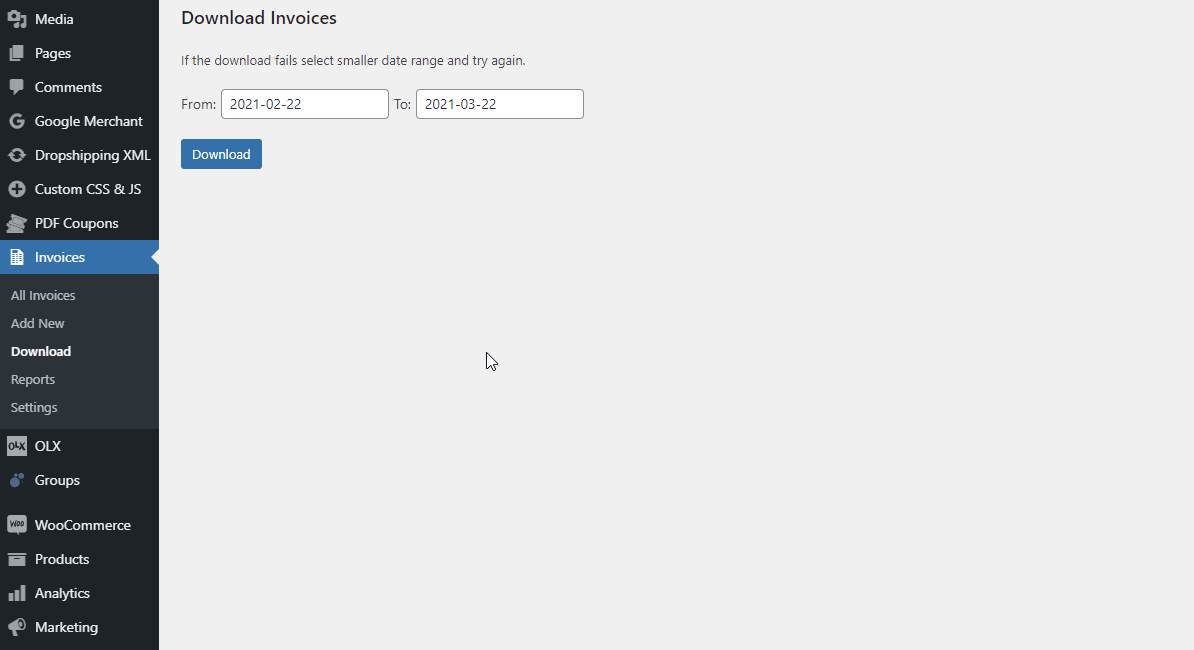
If you only need manual invoicing, the free version of the plugin will suffice. - Invoices can also be downloaded in bulk in the Invoices → Download submenu:
The plugin also handles EU VAT number validation, OSS and currency conversion, which matters if you sell across borders. See how Flexible Invoices follows EU law.
Which order status should trigger the invoice?
This is the only decision in the setup that is hard to undo, because every document the plugin issues consumes a number in your sequence.
Processing is the usual answer. Most payment gateways move a paid order to Processing, so the invoice goes out alongside the payment confirmation, while the order is still fresh in the customer’s mind.
Completed suits stores where payment is collected on delivery or where you want the document to follow the shipment rather than the payment.
Pending payment and On hold are the ones to avoid. Both mean the money has not arrived, and plenty of those orders never convert. Issuing invoices there produces numbered documents for sales that did not happen, and in most EU countries an invoice number cannot simply be reused or deleted, so you end up correcting documents that should never have existed. For unpaid orders, issue a proforma instead. That is exactly what the document is for.
If you are starting mid-year, set the initial invoice number before the first document is issued, so your new sequence continues the old one rather than restarting at 1.
How to create a proforma and correction invoice in WooCommerce automatically?
- Go to the Documents tab.
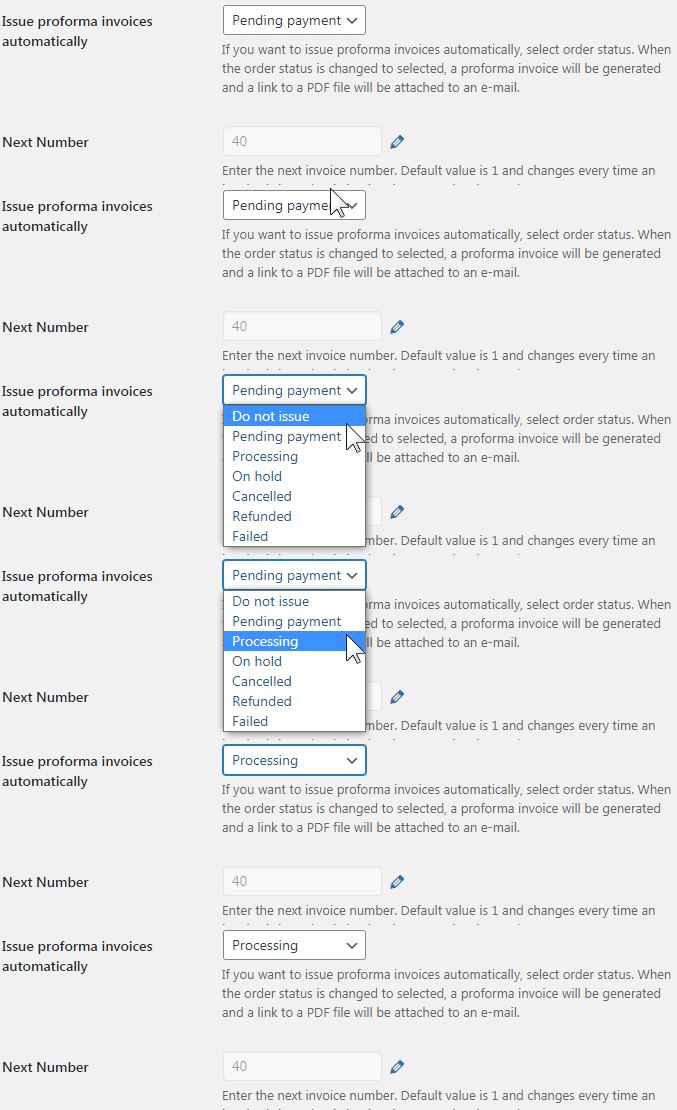
- There you’ll find separate settings for regular invoices, proforma invoices and corrections.
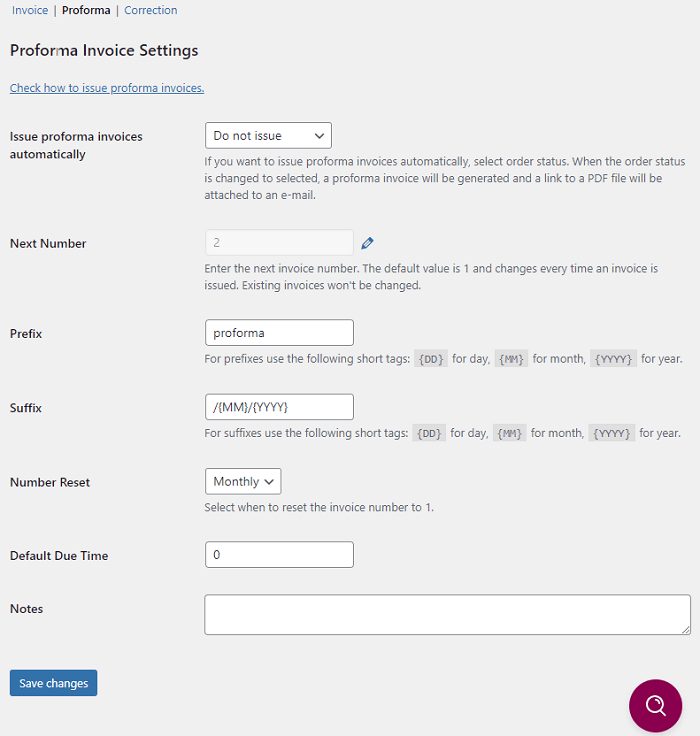
- Each document type can be tied to its own order status, or switched off entirely with the Do not issue option.
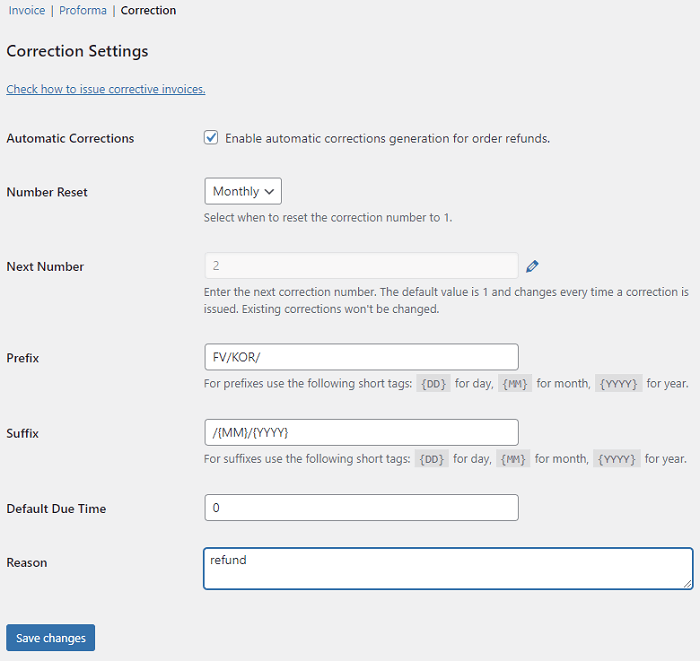
- In the current version, corrections are generated automatically only when a refund is processed on the order. A correction for any other reason is issued by hand.
Issuing a VAT invoice manually
Manual invoicing works in both versions of the plugin, and it is not limited to WooCommerce orders. You can invoice a client who paid by transfer, a service, or anything else that never touched the shop.
- Go to Invoices → Add New
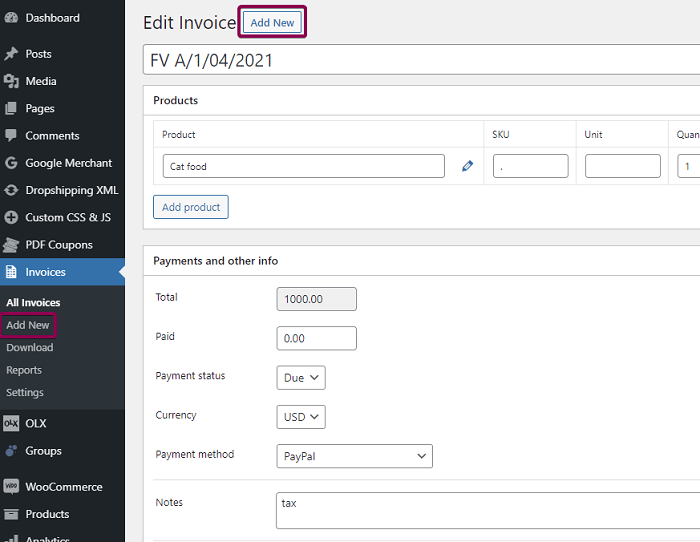
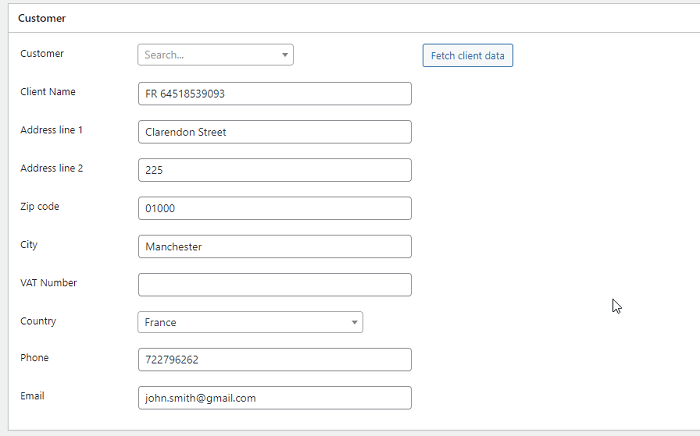
- Select a customer from the list or enter the details:
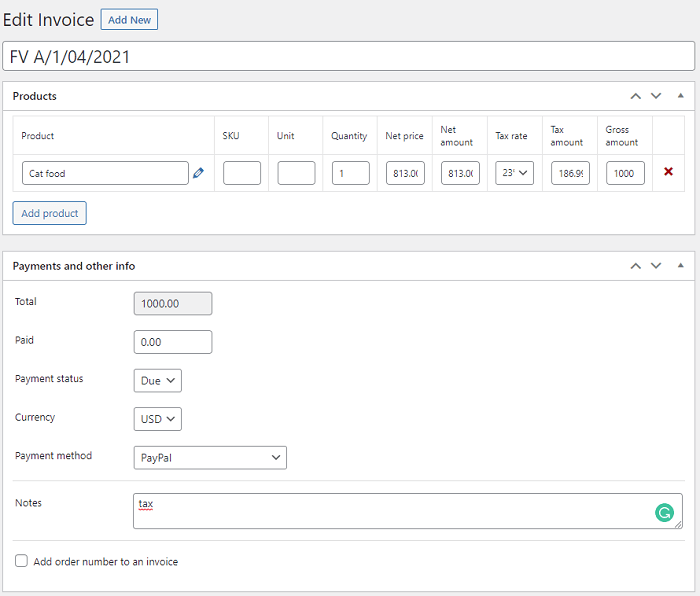
- Add the products and payment details:
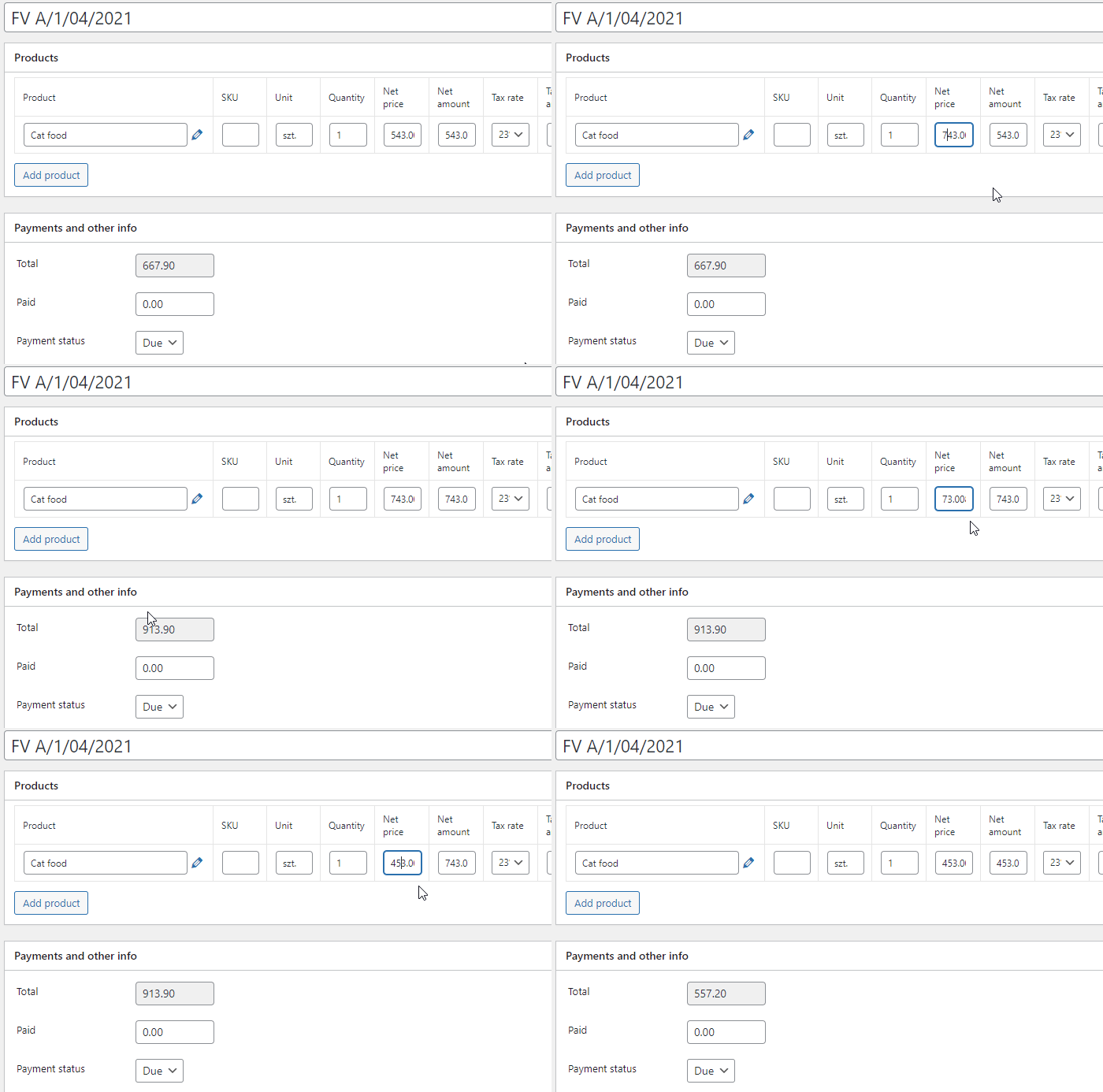
- Amounts are calculated as you type, including tax:
- Click Publish to issue the document. It can then be emailed to the customer from the same screen.
How to download a PDF invoice in WooCommerce?
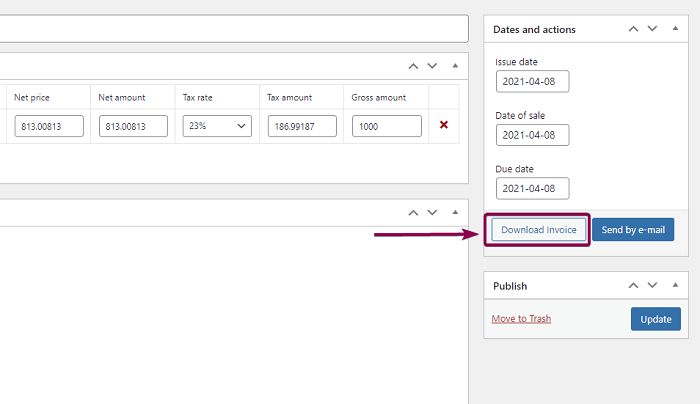
Click the Download invoice button on the order or on the invoice itself:
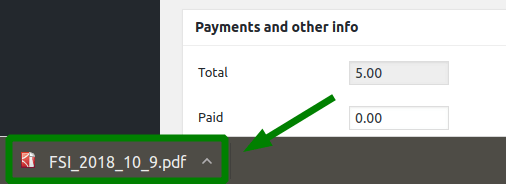
The file is generated and saved:
There is nothing to download until the invoice exists, so an order with no document has no button. For whole periods rather than single orders, use bulk download by date range, which is what accountants usually ask for at the end of the month.
How to send a PDF invoice from WooCommerce automatically?
The plugin adds 3 email templates, or 1 in the free version:
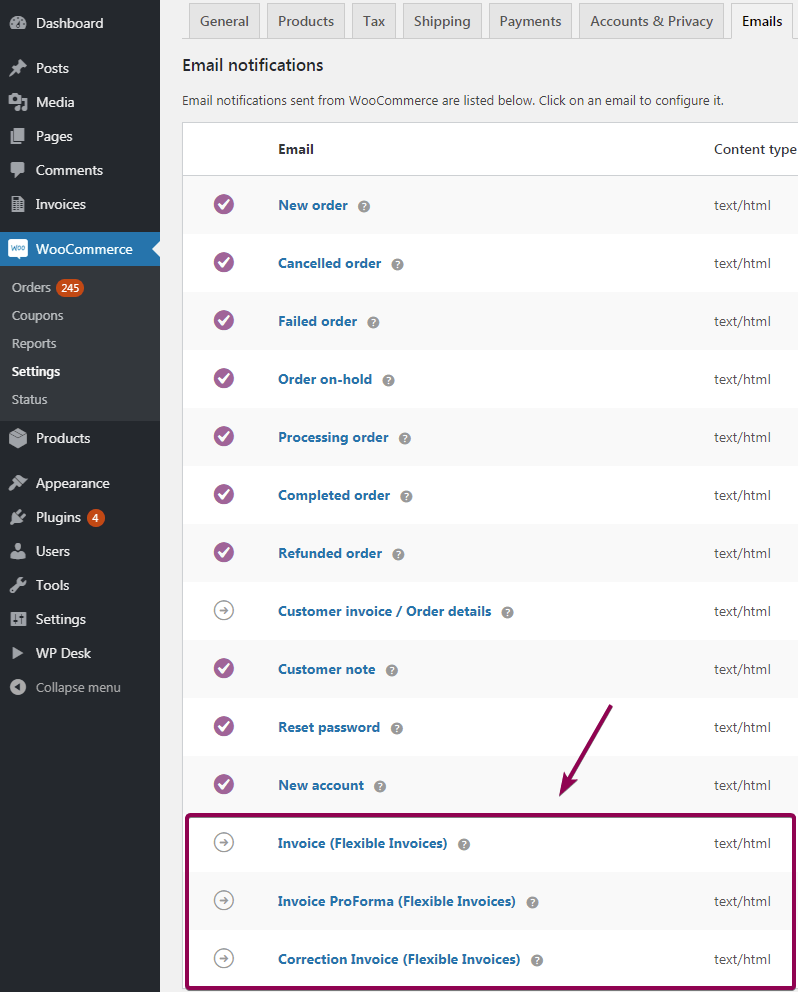
In PRO, the email with the attached PDF is sent automatically at the status chosen for invoices, proformas and corrections:
So an order that reaches “Processing” after a successful payment leaves with both the confirmation and the document.
Email is doing more work here than it looks. WP Desk telemetry from 19,803 WooCommerce stores, collected in August 2026, shows 86.2% of orders placed as guests. A guest has no account to come back to, so the attachment is the only copy of the invoice that customer will ever have. If automatic sending is off, most of your buyers will be emailing you to ask for it.
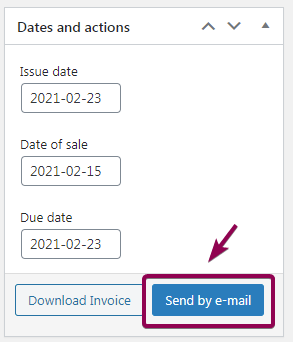
You can also send an invoice by hand at any time from the invoice edit screen:
Templates accept custom HTML and PHP, which is useful for adding a payment link to the message. Information meant for the document itself goes in the invoice notes, edited before sending.
Free version or PRO: which one do you need?
Flexible Invoices for WooCommerce is the PRO version of Flexible Invoices for WooCommerce and WordPress, currently running on over 6,000 stores:
| Free | PRO | |
|---|---|---|
| Issue invoices from WooCommerce orders | Manually | Manually and automatically |
| Issue invoices outside WooCommerce | Yes | Yes |
| Document types | Invoice | Invoice, proforma, correction |
| Email templates | 1 | 3 |
| Automatic sending on order status | – | Yes |
| Sequential WooCommerce order numbers | Yes | Yes |
| EU VAT number validation, OSS, reverse charge | – | Yes |
| Currency conversion table (ECB rates) | – | Yes |
In both versions you also get custom numbering with prefixes and suffixes, a starting number for mid-year migrations, a PDF template for VAT taxpayers and VAT-exempt entities, currency and tax rate management, and reports covering documents issued in a date range.
The practical dividing line is volume and VAT. A handful of orders a month, all domestic, works on the free version. Daily orders, or any cross-border B2B sale, is where the automation and the VAT handling pay for themselves.
Start with the free version, or see PRO and its add-ons in a free demo.
WooCommerce invoice plugin for EU sales
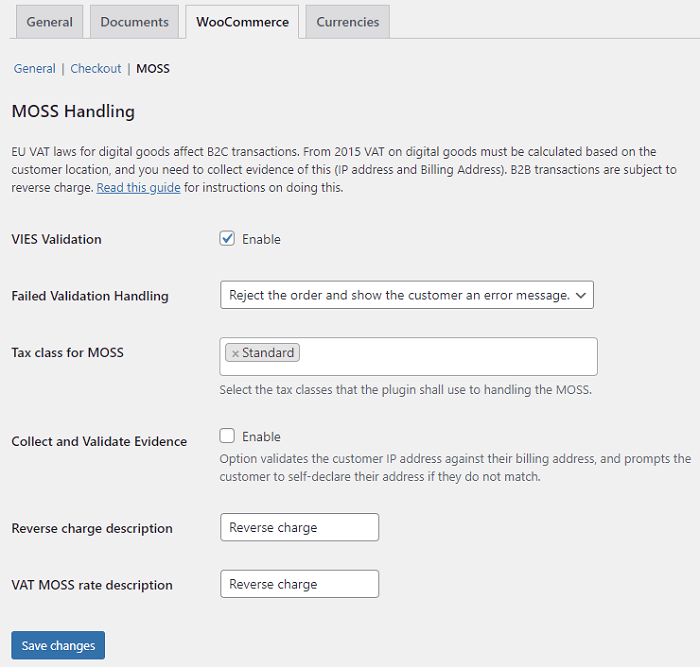
Upgrading adds a set of options under the WooCommerce tab in the plugin Settings:
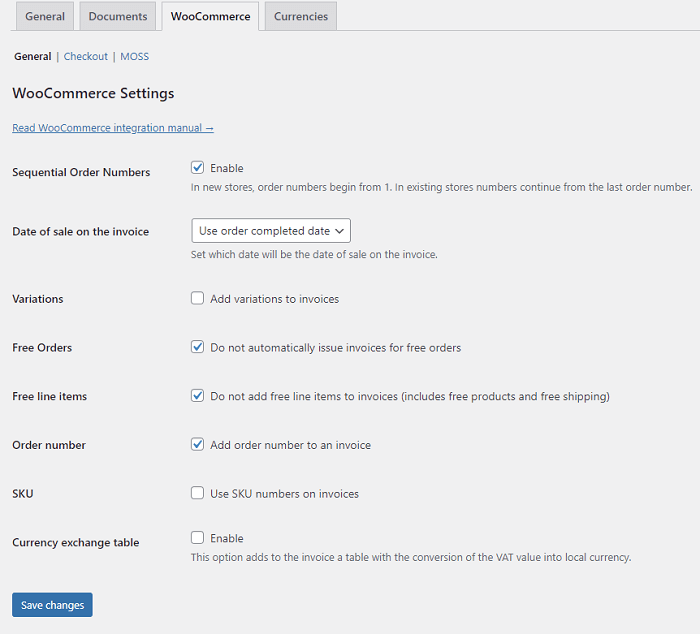
- A currency exchange table on the invoice, with rates taken from the European Central Bank.
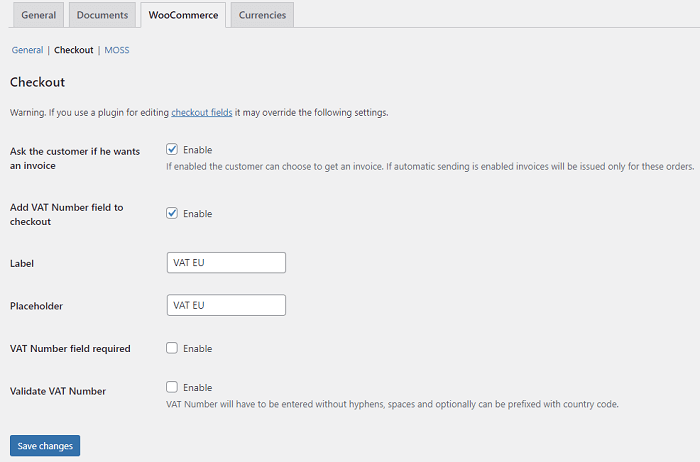
- A VAT number field at checkout:
- OSS and reverse charge handling.
The VAT number of a business customer from another EU country is validated automatically, and the invoice is issued with the reverse charge note and no VAT. Consumers receive invoices with the rate appropriate to their country:
For the full tax configuration behind all of this, see the WooCommerce taxes tutorial, and for the free plugin on its own, creating, downloading, emailing and printing invoices in WordPress and WooCommerce.
Can I use the plugin in languages other than English?
Yes. The plugin is translated into French, Spanish, Italian, Polish and Dutch as well as English, and it supports WPML, so a multilingual store can issue documents in the customer’s language.
Summary
Automatic invoicing in WooCommerce comes down to one choice: which order status issues the document. Pick Processing if payment comes first and Completed if shipment does, and keep invoices off the unpaid statuses so your numbering never has to be corrected. Proformas cover the unpaid case, corrections follow refunds automatically, and both the single download and the bulk export by date range are there for the accountant. The free version handles all of this manually; PRO removes the manual step and adds the EU VAT handling.
Frequently asked questions
Does WooCommerce generate PDF invoices by default?
No. WooCommerce sends order confirmation emails, which are not invoices and carry no invoice number. A plugin is needed to produce the document.
Which order status should create the invoice?
Processing for most stores, because it is the status an order reaches after a successful online payment. Completed suits cash on delivery or shipment-based invoicing.
Can I issue invoices for unpaid orders?
You can, but it is a poor idea. Every document consumes a number in a sequence that cannot simply be reused, so abandoned orders leave gaps and corrections behind. Issue a proforma for an unpaid order instead.
Are corrections generated automatically?
Only when a refund is processed on the order. A correction issued for any other reason is created by hand.
Can I invoice something that was not bought through the shop?
Yes. Invoices → Add New creates a document from scratch, with no WooCommerce order behind it, in both the free and the PRO version.
Will the plugin invoice orders placed before I installed it?
Not automatically. Automatic creation applies to orders that reach the triggering status from then on. Older orders can be invoiced manually.
How do customers receive their invoices?
As a PDF attached to the email sent at the chosen order status. This matters more than it sounds, as most WooCommerce orders are placed by guests who have no account to download it from later.
Can I download a whole month of invoices at once?
Yes, through bulk download by date range, which is the usual way to hand a period’s documents to an accountant.
