



If you are an active VAT taxpayer, you will find the recommended configuration below.
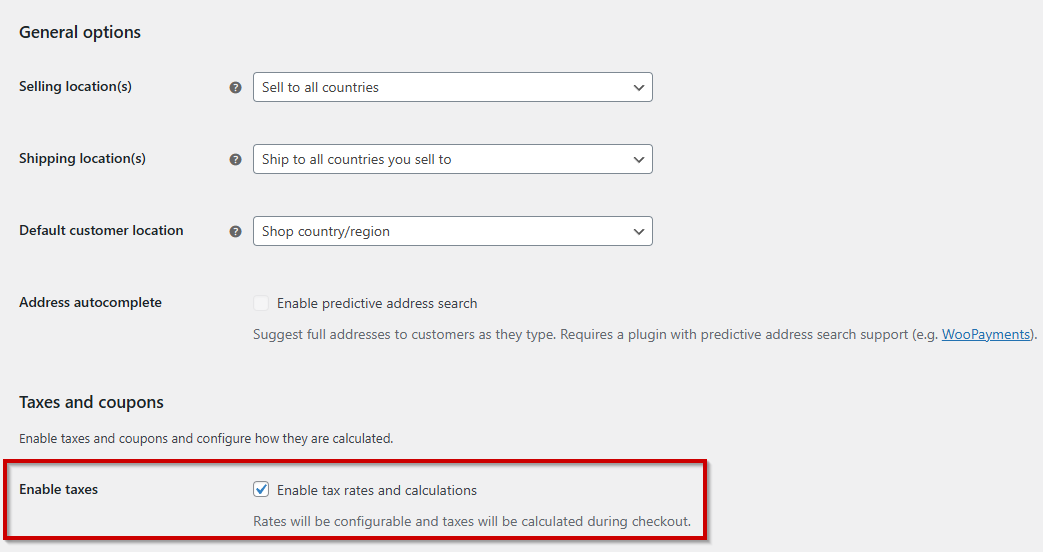
Go to WooCommerce → Settings and select Enable taxes and tax calculations.
1043 by 552
Then go to Tax tab.
Set the following options:
- Choose: No, I will enter prices exclusive of tax
- Choose: Display Tax Totals: Itemized
Set other options according to your preferences and your country's law requirements.
Then, go to the Standard Rates tab and define the tax rates to be used in your store:

Please note that the name for Tax Name field will be visible on the invoice under the Tax rate field.
How to Configure WooCommerce Taxes a Complete Tutorial#
You may read the WooCommerce taxes complete tutorial that may help you setting taxes in your store.
Import WooCommerce EU tax rates from CSV#
In the following article, you will find the Download the Ready-to-Import CSV file with European standard tax rates. The post will guide you also when importing tax rates to WooCommerce.