




WooCommerce payment methods are an extremely important element of e-commerce sales. Customers are more likely to make payments in WooCommerce using their favorite payment method. Today, a few words about the ways to set up payments in your store including WooCommerce Payments & free invoicing.
A good product is part of success. Customers are also guided by payment methods while shopping. They will choose their favorites or the ones they are used to. Check out what WooCommerce offers in terms of payment methods.
Table of contents
- Which payment methods WooCommerce offers?
- What do WooCommerce payments give us?
- Decide about WooCommerce Payment methods in the checkout
- Flexible WooCommerce Payments
- How to add a payment method description on a WooCommerce invoice?
WooCommerce payment methods
By default, WooCommerce provides the following payment methods.
- Direct bank transfer
- Cash on delivery
- Check payments
- WooCommerce Payments
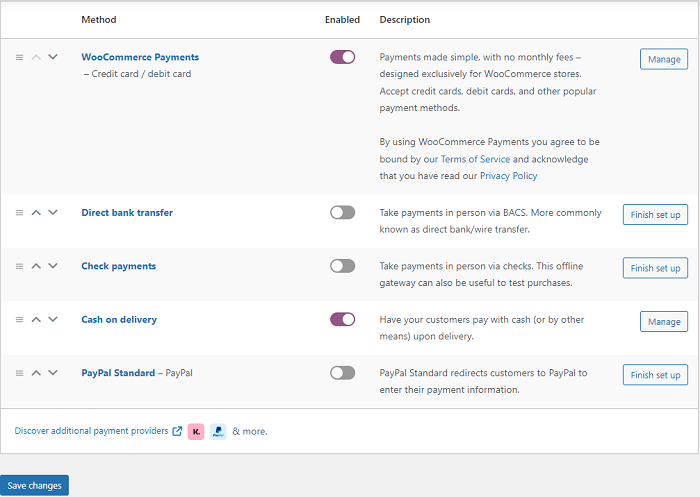
If you want your customer to be able to purchase via one of the selected WooCommerce payment methods, select it in the settings panel. Go to WooCommerce > Settings > Payments then enable and configure WooCommerce payment options. Your customers will purchase your product using these methods.
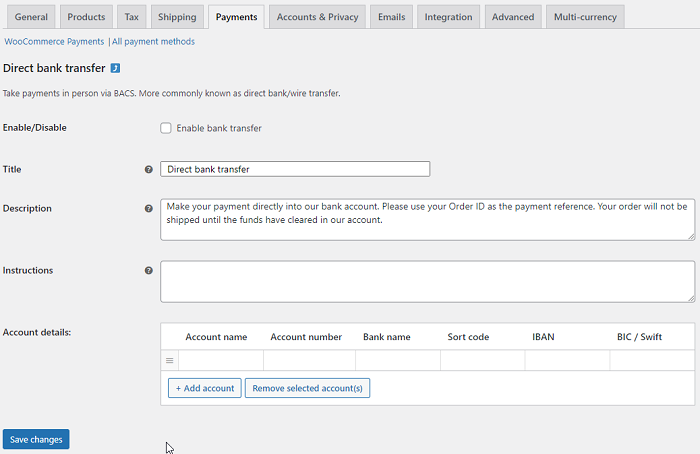
For example, setting up the Direct bank transfer method is simply limited to enabling payments and modifying the payment description. Add the bank account number where your customers will transfer funds for purchased products and services.
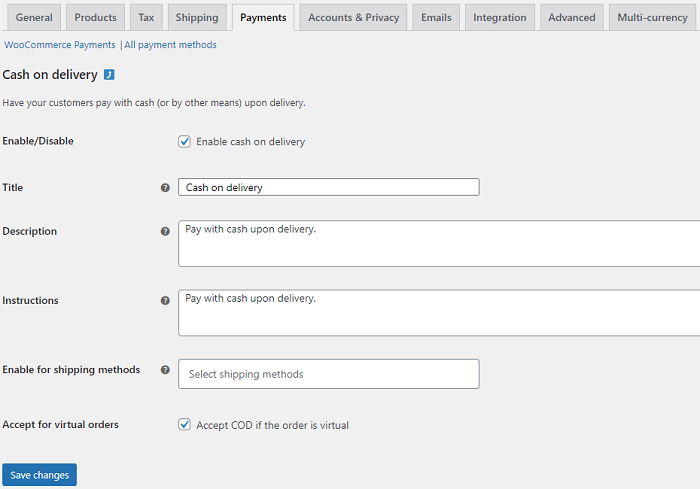
Cash on delivery is much easier to use. Simply enable this option and correct the default description of this payment method.
Check payments require similar steps, but in the description of this payment method, you should include the address and the name of the shop. This will help customers with where to send the check.
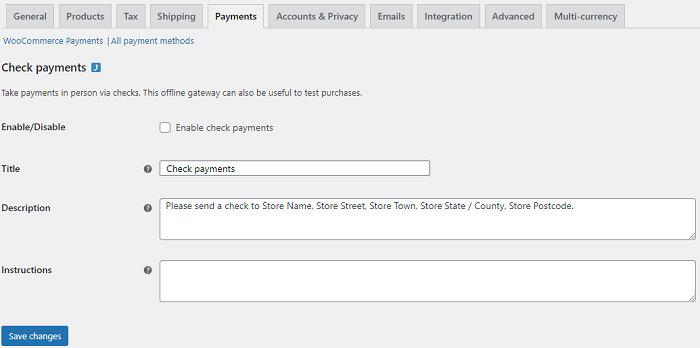
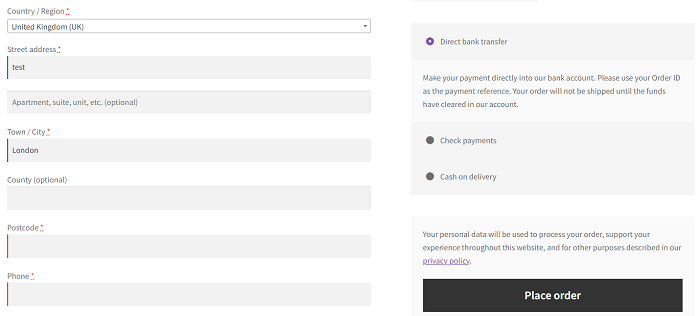
This is what it looks like from the perspective of the shop staff. The customer will see all enabled payment methods on the checkout page. He will fill in details first and then select one of the offered payments, before selecting the Place order button.
What are the best WooCommerce payment methods?
It depends. Cash on delivery will probably not be appropriate for digital products.
Bank transfers may be less popular and country-dependent.
You can find free plugins for additional payment gateways for WooCommerce in the WordPress repository.
Of course, there is no need to pick all payment methods for WooCommerce.
What do WooCommerce payments give us?
It is slightly different from WooCommerce Payments, which offers many flexible WooCommerce payment options such as Stripe, G Pay, and others. You need to have an account on wordpress.com. It helps you go through the basic configuration of WooCommerce Payments.
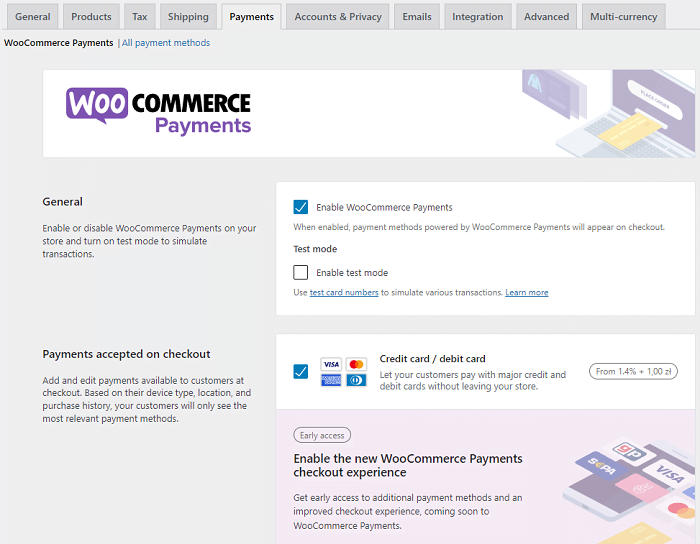
Once you have dealt with the basic configuration of WooCommerce Payments, you will get the entire payment panel in your shop with the following tabs:
- Overview
- Deposits
- Transactions
- Disputes
- Documents
- Settings
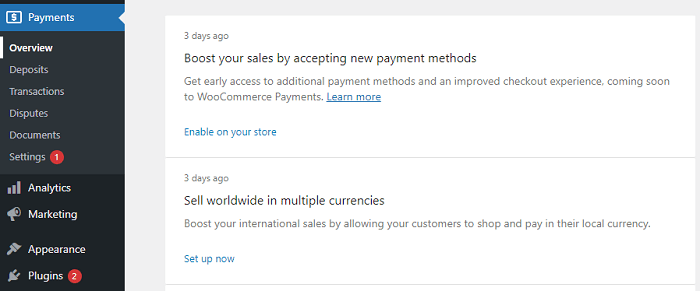
The Overview tab allows you to keep track of your balance, and account details. It allows you to keep track WooCommerce payment methods, currency, or even set a refund policy.
Deposits allow you to view your deposit history by Date, Type, Status, Amount, and Bank Account. Filters are also available to manage and search for deposit data in an even better way.
Similarly, the Transactions tab will allow you to control the transactions already contained in the shop. Date/Time data are available, as well as other data such as Type, Channel, Amount, Fees, Net, Order, Source, Customer, and Deposit Date.
Disputes are another type of data you can track in Payments. As well as a filter that allows you to quickly extract data. You can track the following values Amounts, Status, Reason, Source, Order, Customer, Disputed on, and Respond by.
There is also a Documents tab where you can track documents issued in connection with payments. We can sort it by Date, Type, and Description.
Decide about WooCommerce Payment methods in the checkout
By setting up the four WooCommerce payment options mentioned in the store, namely:
- Direct bank transfer
- Cash on delivery
- Check payments
- WooCommerce Payments
you will make all the listed payments available to your customers in the checkout form. It can help increase sales. You can also decide which of the listed payments will be available depending on the shipping method you choose. It can also depend on the value of the order.
Flexible WooCommerce Payments
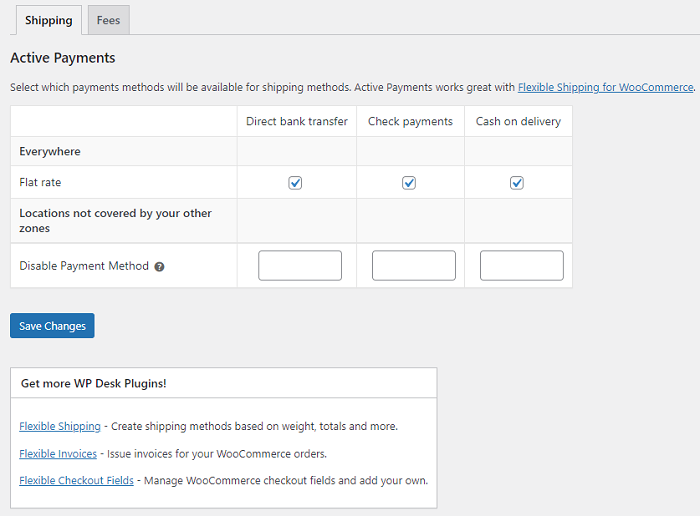
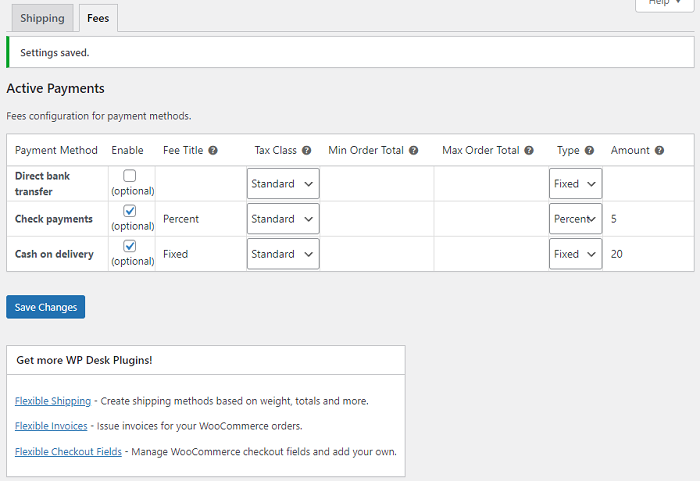
WooCommerce payment methods at the checkout depend on the WooCommerce settings. But, as you can see, they can also be adjusted for shipping methods or order total.
How to add a payment method description on a WooCommerce invoice?
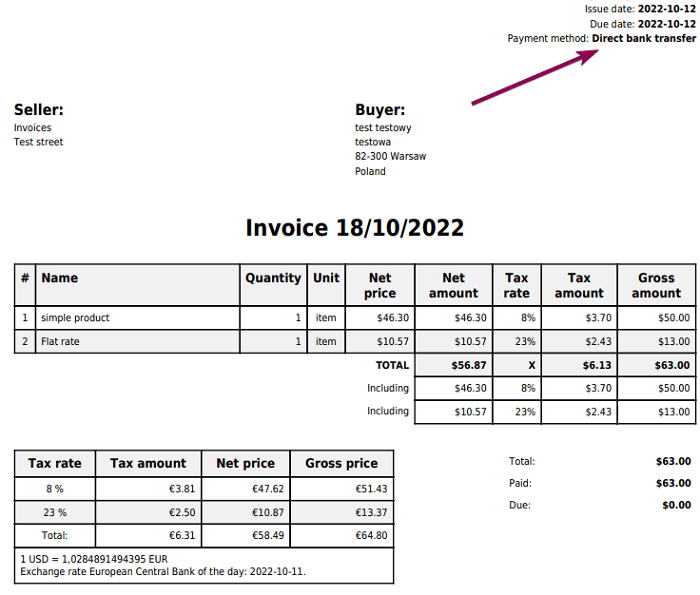
An important option is the description of the WooCommerce payment methods when invoicing. You may show the WooCommerce payment methods on the PDF invoices with the Flexible PDF Invoices for WooCommerce plugin!
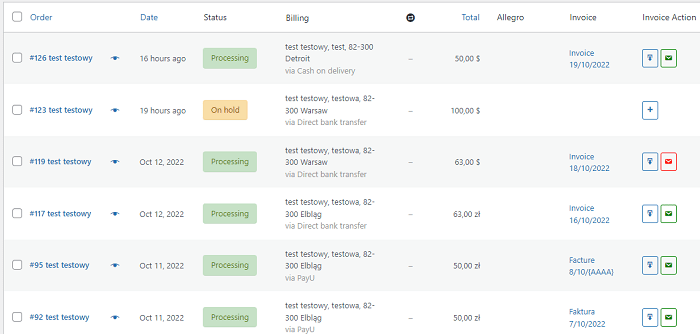
This will be helpful for accounting statistics, but also sales stats. All you need to do is go to the settings of the WooCommerce invoice payment methods running in your shop, e.g. WooCommerce > Settings > Payments > Cash on delivery, and add a title for the payment method. It will allow you to quickly verify the most popular WooCommerce payment method in your shop. Let’s see an example below.
All you need to do is go to WooCommerce > Orders, select screen options and enable the Billing checkbox. This will allow you to quickly verify which payment method your customers are choosing.
The payment method will also be printed on the invoice. It will be exactly the same value as entered in the Title field in the WooCommerce payment options settings.
This is what the Flexible Invoices for WooCommerce plugin provides. Simply enable the plugin, issue an invoice and payment methods will appear as entered in the WooCommerce payment methods settings.
WooCommerce Payments and customizing payment methods – Summary
As you can see, WooCommerce offers several payment methods (including WooCommerce Payments) that you can track both in the order list and on the invoices themselves. This is especially helpful when you want to test the popularity of the payment methods you have set up in your shop.
The best way to see our plugins in action is to try them on our demo server. If you have any questions, please contact us!
