





In this article, I will show you how to generate correcting invoices in WooCommerce for refunds. With the Flexible Invoices for WooCommerce PRO plugin, you can sell and refund with ease!
Read about:
- Basic settings of Flexible Invoices WooCoommerc
- Correcting Invoices in WooCoomerce
- Refund options in Flexible Invoices PRO
- Flexible Invoices Demo
Basic settings of Flexible Invoices WooCoommerce Pro
So let’s start the story about an automatic correcting invoice, the short one 🙂 With the Flexible Invoices plugin, you can do it with just one click. Below you will find a step-by-step guide.
1. The plugin
First, the most important thing! Correction invoices are only supported by Flexible Invoices PRO.
2. Company details
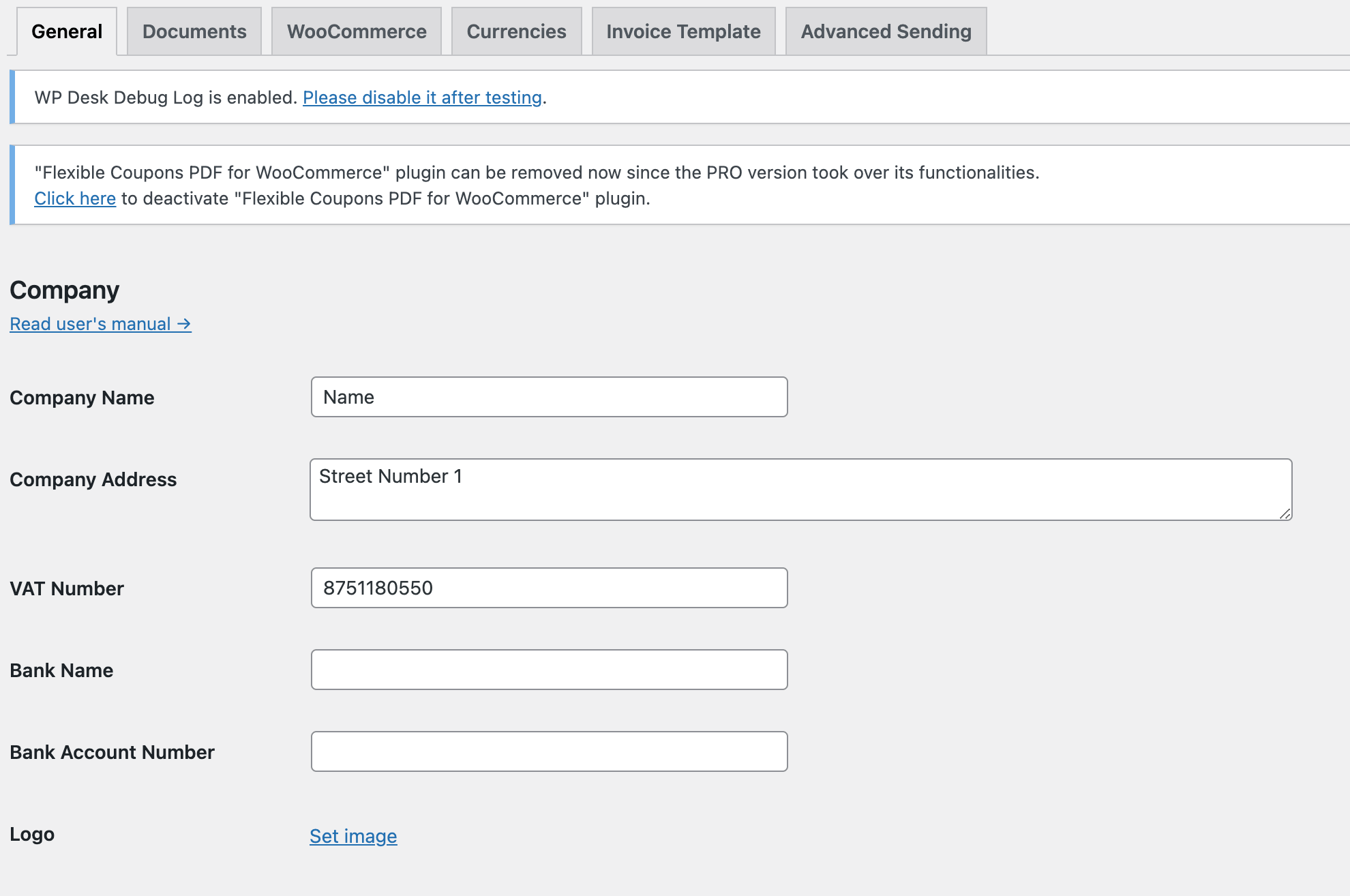
After installing the plugin go to Invoices > Settings > General and enter your company details and other necessary data like bank account or logo. All of this data will appear on the PDF invoice.
3. Set 3 types of Invoices
In the second tab, you will find Documents configuration. You may discover all types of documents: invoice, proforma, and corrections. In this example, we look close only to a correction.
4. Correcting invoices for WooCommerce refund process
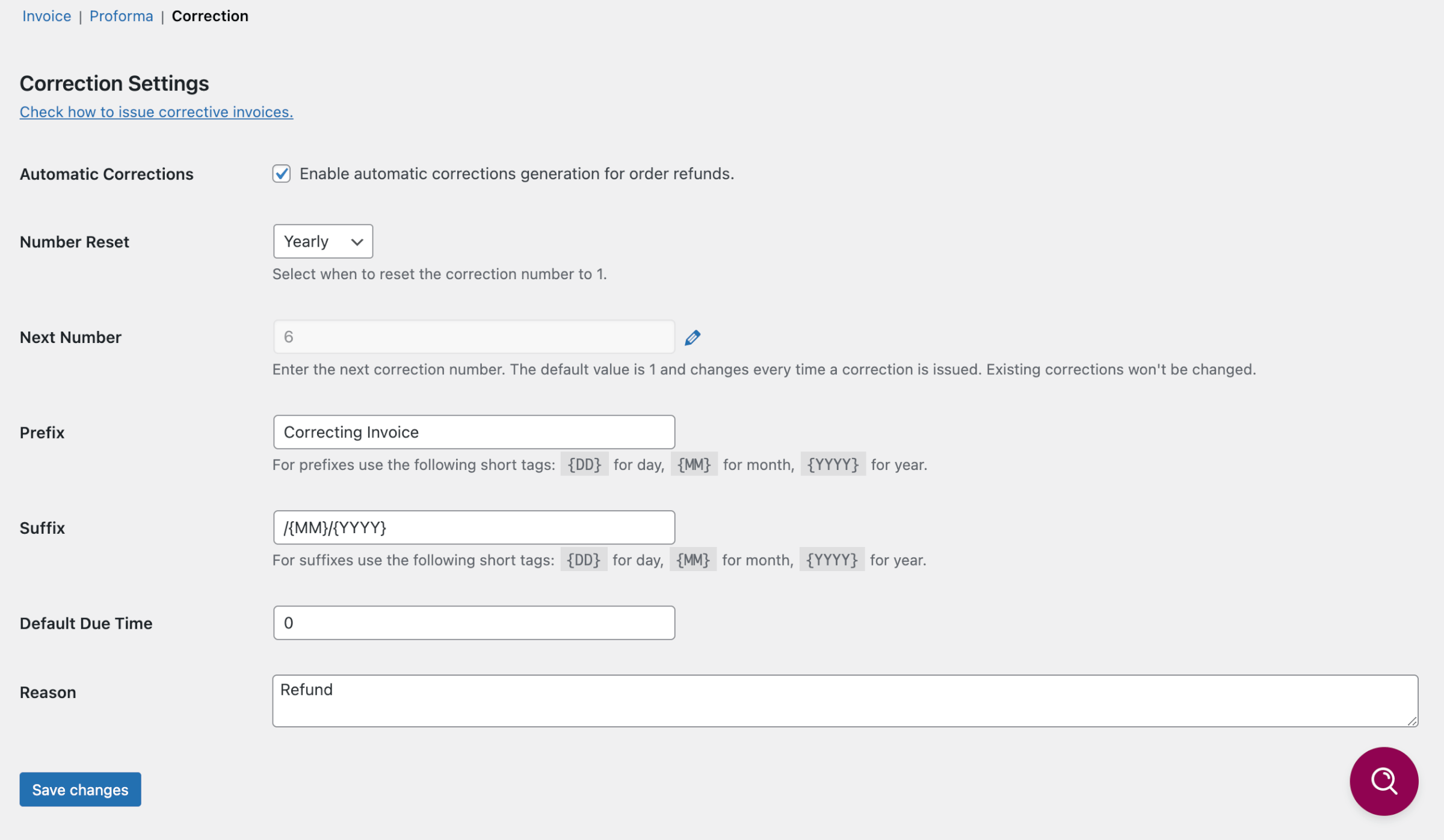
Below you can see a correction setup window. Select the first checkbox Enable automatic corrections generation for order refunds. Automatic correction invoices depend on this option.
All fields are optional, and you may choose the perfect configuration for you. Select when the number of corrections reset: yearly, monthly, or never. All of this appears on a correction invoice so customize all information in the best way to fulfill your needs.
How to issue correcting invoices in WooCoomerce?
All configuration work is done. So it’s time to issue the first invoice. Please remember that you can only create a correction if an order has already generated an Invoice in the WooCommerce shop.
- Choose an order where you want to refund.
- You will see a list of all ordered items and a REFUND button as well.
- Click on it, and now you can start the refund process.
- Under the amount and prices of products, you will see fields to enter refund values.
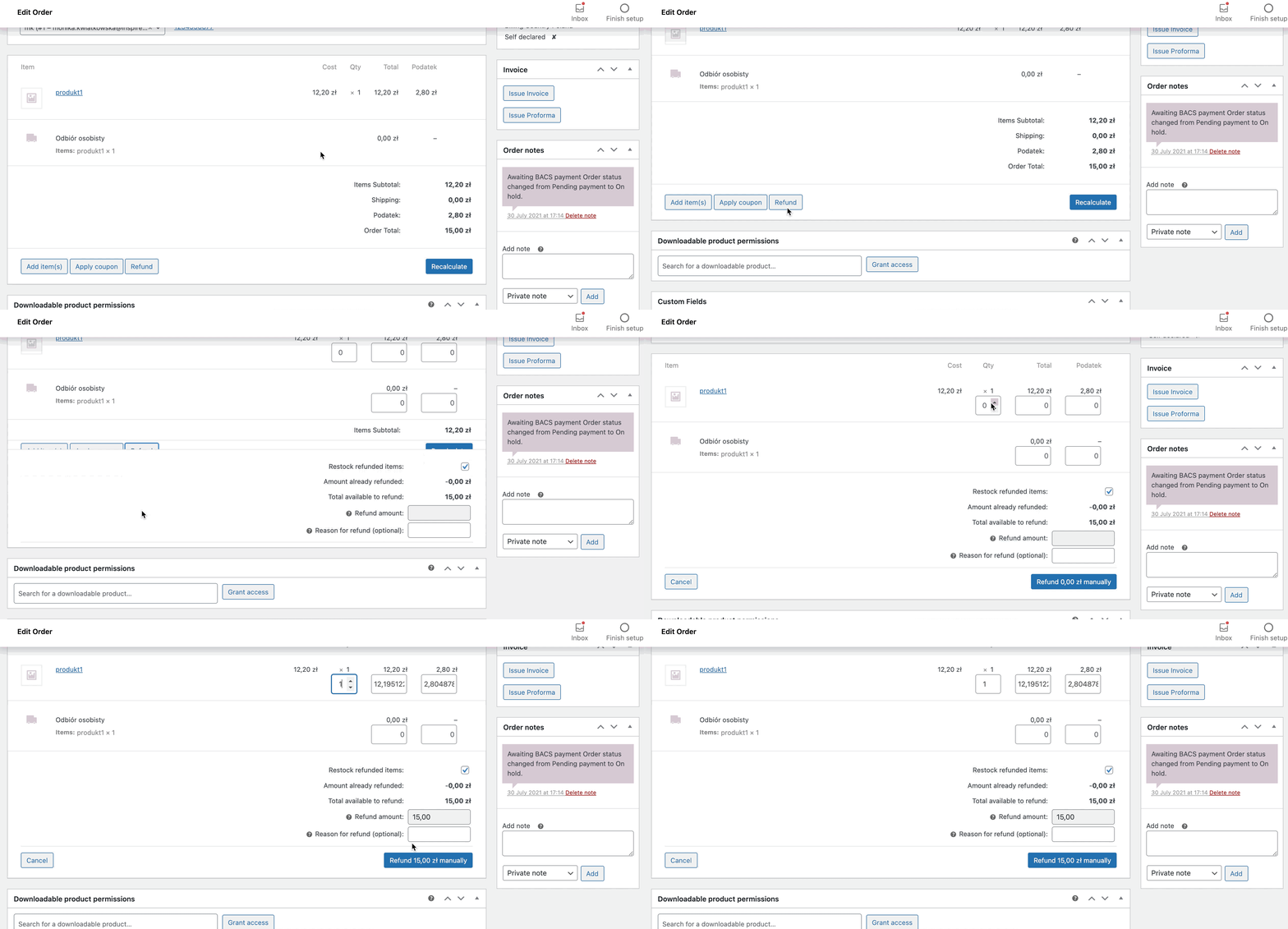
- In a few seconds, the Correcting Invoice will be created.

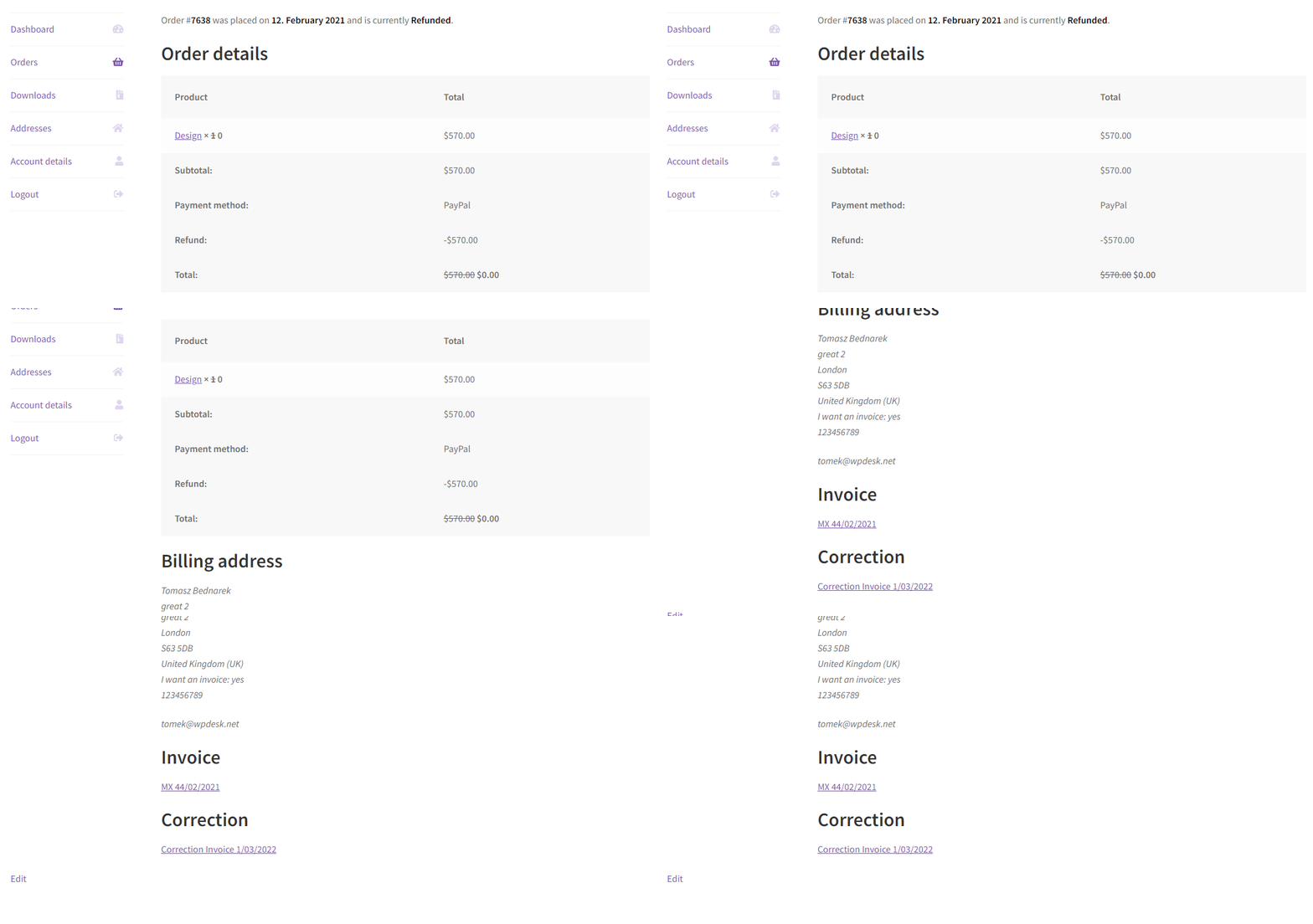
- That’s it. The customer will receive the email with the correction invoice. It will also be available on the My Account page.
Refund options in Flexible Invoices PRO
Refunding the whole invoice
In this case, a customer wants all the money back. So put the quantity of a product, and the refund amount will automatically adjust based on the products refunded.
Make sure the refunded amount is the same as the amount of the order. Then click Refund manually or process the Refund through the payment gateway.
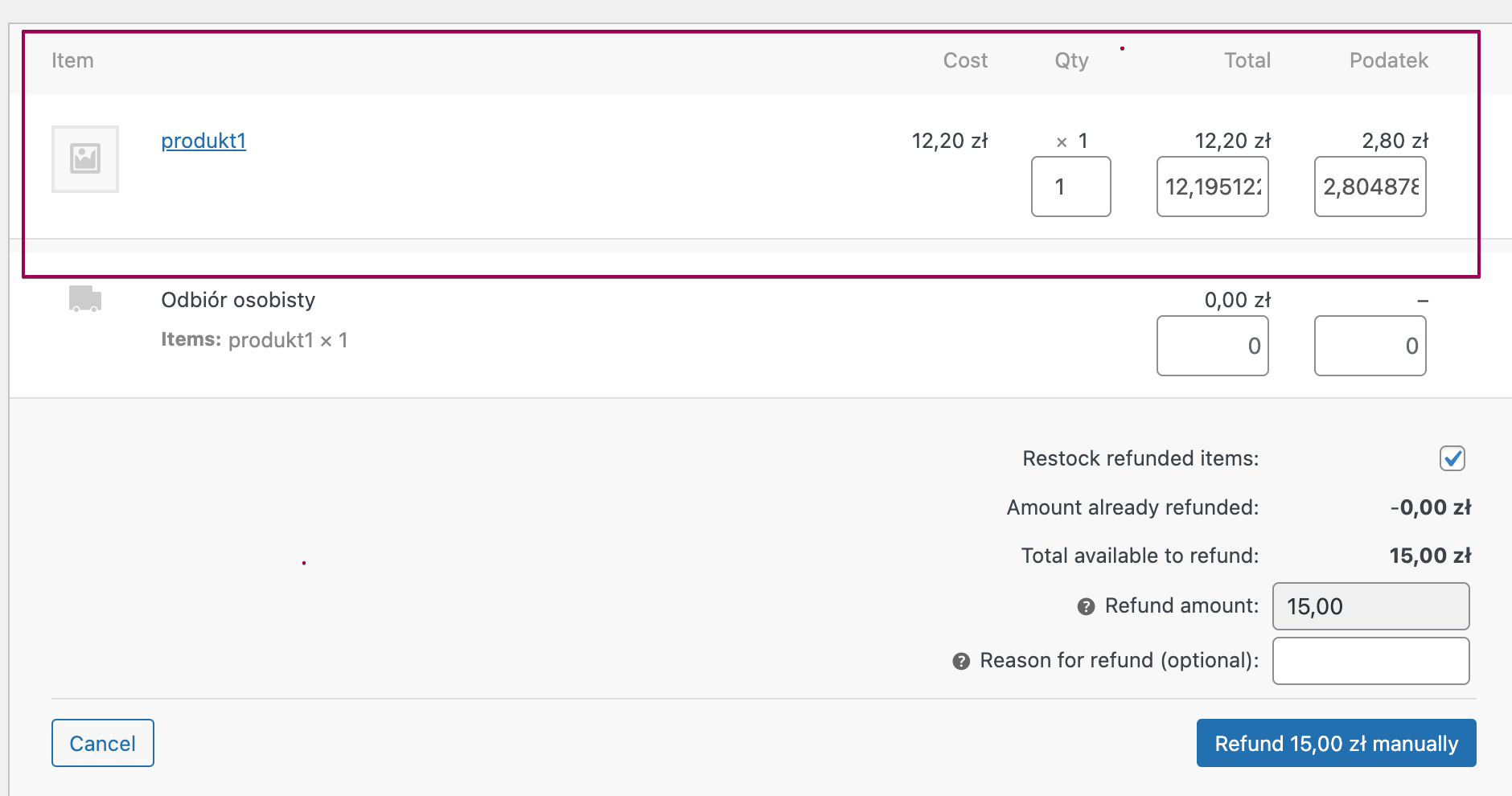
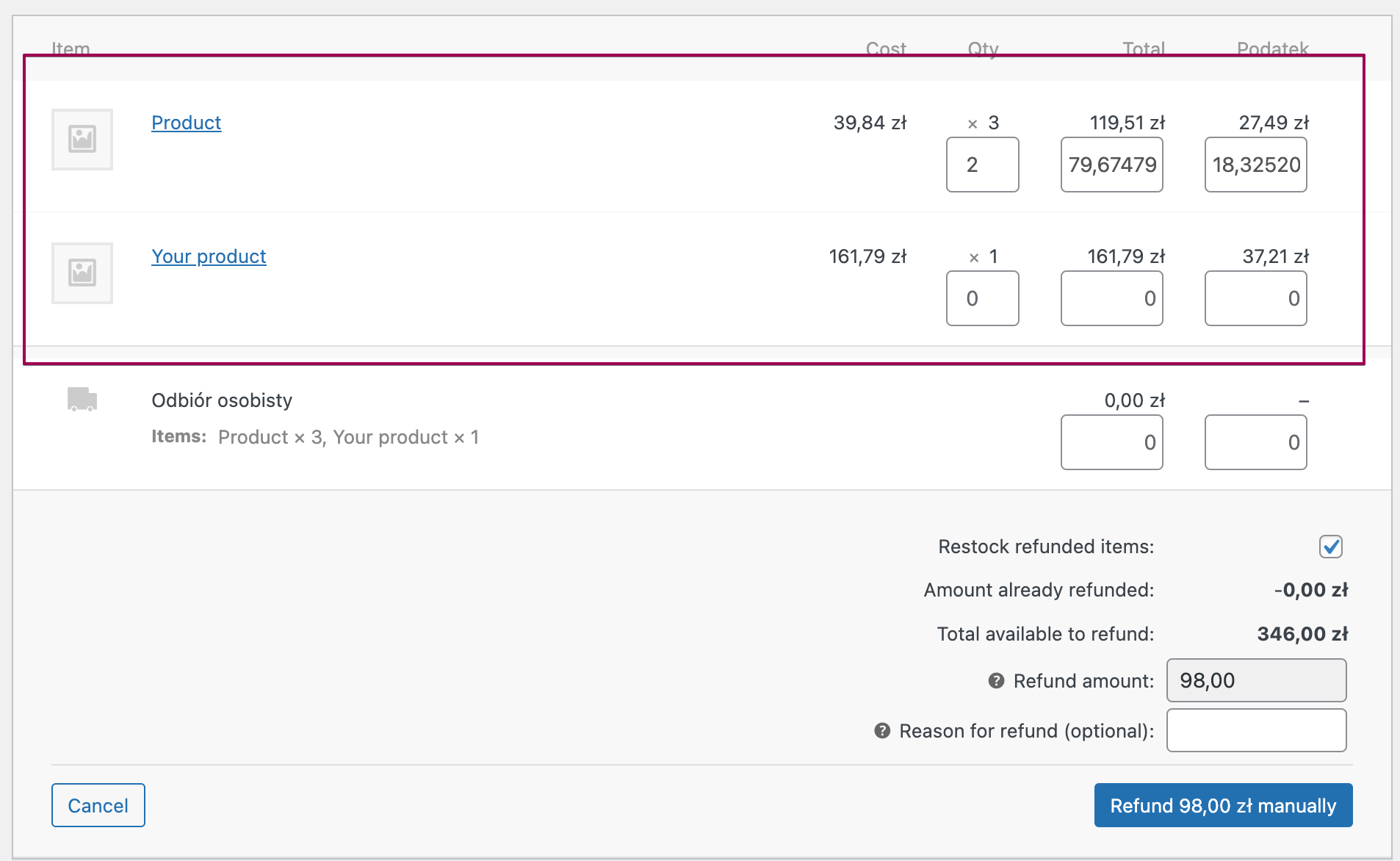
Refunding part of an invoice
A client bought a few products but wants to refund only one. For this, look at the products list in order and choose the refunded item. Fill up the quantity Refunded value, and taxes automatically adjust, like in the example above.
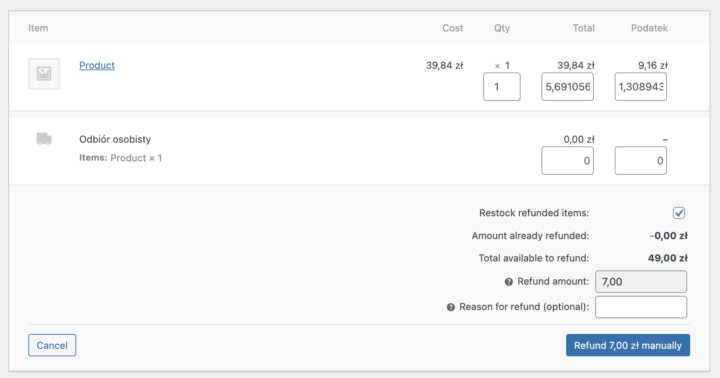
Change price of products
Let’s assume that you made a mistake, the price of the product is incorrect and your customer paid too much. It’s also possible to create a correction, but you have to enter the refund value manually in this case. Also, you shall calculate the amount of VAT refunded based on the net amount.
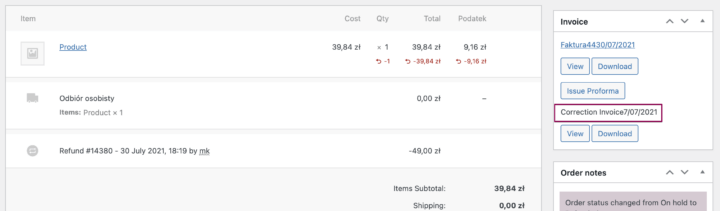
Items selected for a refund will be noted as refunded.
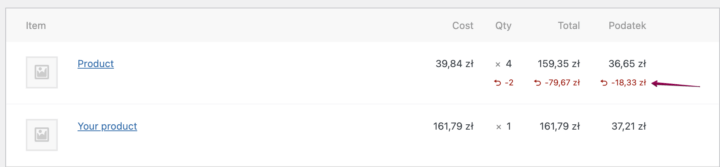
Now you can see correcting invoice in order’s meta box!
Try Flexible Invoices Pro – see how easy issue a correcting invoices
No matter how great your products are, sometimes customers bring back a product they bought. Using automatic correcting invoices with Flexible Invoices for WooCommerce PRO makes your refund process more friendly for customers.
Try the correction invoices and the refund process of Flexible Invoices PRO in your free demo. Of course, if you need assistance or have any questions about Flexible Invoices PRO contact us. We would be happy to help you 🙂
