




WooCommerce Analytics is the reporting section built into WooCommerce since version 4.0, found under Analytics in the WordPress admin. It gives you twelve reports: Overview, Products, Revenue, Orders, Variations, Categories, Coupons, Taxes, Downloads, Stock and Settings, each with its own date range, comparison periods and CSV export. The one thing to configure before trusting any of it is Analytics > Settings, where you decide which order statuses count towards the numbers. This guide walks through every report, explains the difference between gross, net and total sales, and covers why Analytics figures often disagree with the order list.
- Where to start with WooCommerce Analytics?
- Overview
- Gross, net and total sales: what the numbers mean
- Products
- Revenue
- Orders
- Variations
- Categories
- Coupons
- Taxes
- Downloads
- Stock
- Settings
- Why your Analytics numbers do not match your orders
- Frequently asked questions
Where to start with WooCommerce Analytics?
The analytics tools are available in the WordPress admin panel. Go to the menu and select the Analytics tab. You will have the following tabs to choose from, which we present in turn.
Start with the last one. Analytics > Settings decides which order statuses are counted, and until that is set to match how your store actually works, every other report is measuring the wrong thing.
Overview
When you click on this section, the Overview page will appear. Here you will find data that you can analyze within a date range of your choice. There are many preset ranges to choose from such as last week, month, quarter, year and many more. In the Preliminary section, you can select the following options:
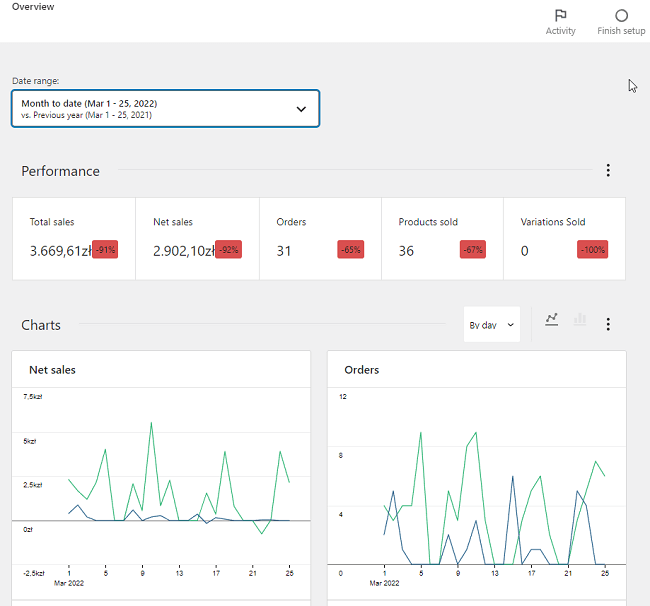
- Today
- Yesterday
- Week to Date
- Last Week
- Month to Date
- Last Month
- Quarter to Date
- Last Quarter
- Year to Date
- Last Year
Within each of the ranges listed, you can choose to compare against the previous period or previous year. The choice matters more than it looks: comparing December against November tells you about Christmas, comparing it against last December tells you about your business.
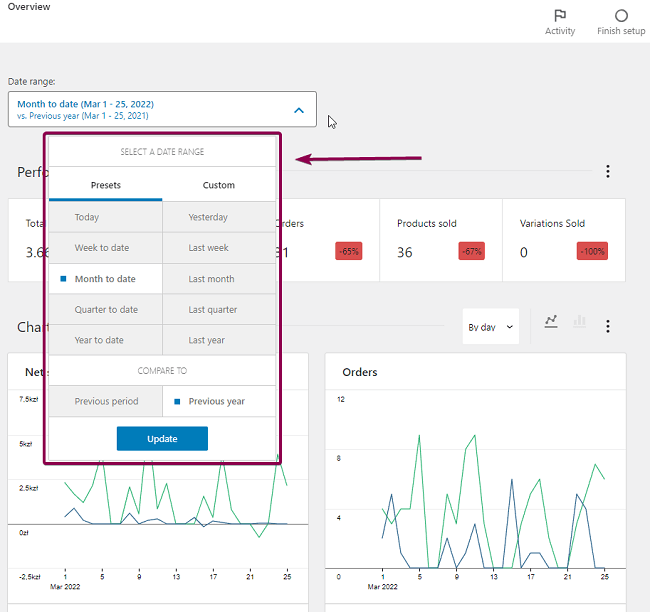
If you do not want to use any of the suggested ranges, you can select the custom option. You will be able to manually enter your own date range or select a date from the calendar.
There are three sections here: Performance, Charts and Leaderboards.
Performance
By default, the Performance section is displayed below the date range. In the first view you have the following data: total sales, net sales, orders, products sold and variations sold.
By selecting a specific value you will be taken to a detailed graph covering the chosen date range.
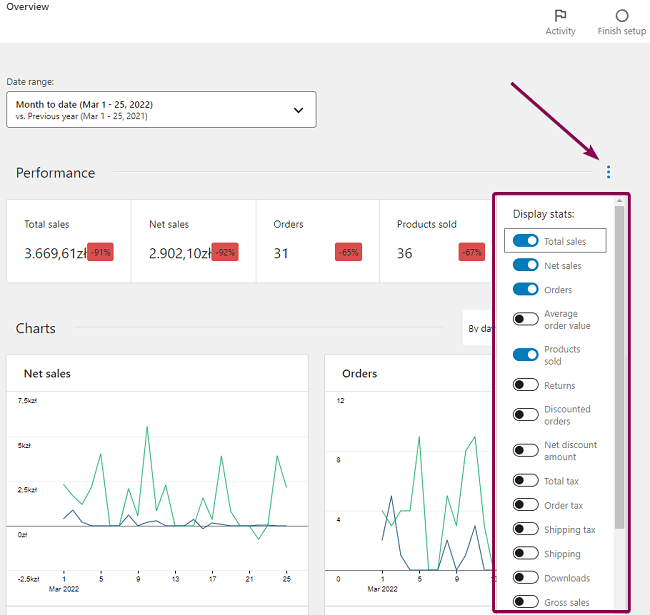
If you want to see other statistics, go to the right side and select the ellipsis icon, the three dots under which the full performance menu is hidden.
You will get a full list of statistical metrics that you can add to the main Overview panel. These are:
- Average order value
- Returns
- Discounted Orders
- Net discounted amount
- Total tax
- Order tax
- Shipping tax
- Shipping
- Downloads
- Gross Sales
Charts
WooCommerce analytics offers another block where you can see the charts. By default, charts are available for Net Sales and Orders. As with Performance, the Charts block has an ellipsis on the right if you need more metrics. You can add:
- Total sales
- Average Order Value
- Items Sold
- Returns
- Discounted Orders
- Gross Discounted
- Total Tax
- Order Tax
- Shipping Tax
- Shipping
- Downloads
You may use line and bar charts to present data.
Leaderboards
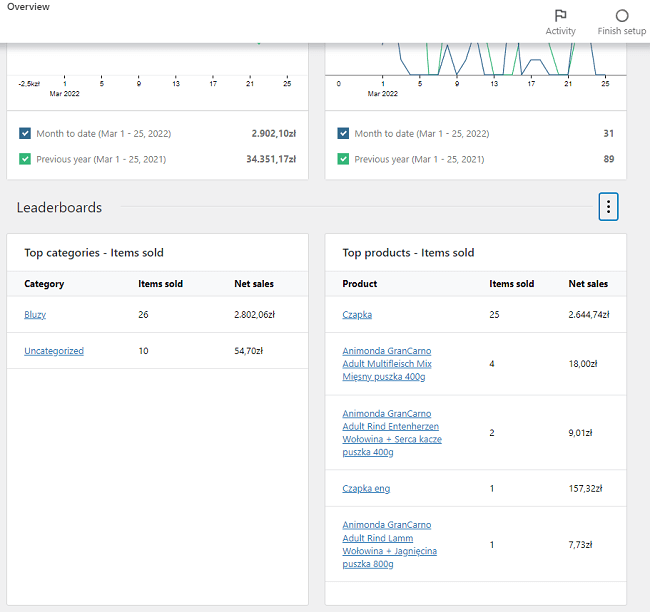
Here you can display leaderboards for different statistics. By default, Top categories by items sold and Top products by items sold are available in the main view.
As with the other two sections, you can use the ellipsis to adjust the displayed statistics, change their order on the page or remove them altogether. Here you can also select the number of rows displayed in the table. Top customers by total spend and Top coupons by number of orders are available too.
How useful leaderboards are depends on the size of your catalogue. WP Desk telemetry from 19,803 WooCommerce stores, collected in August 2026, shows 42.7% of stores carrying fifty products or fewer. With a catalogue that size you already know what sells, and the leaderboard mostly confirms it. The value appears once there are enough products that the ranking can surprise you.
You can rename each of the three sections in the Overview tab, allowing you to personalize your WooCommerce analytics even further.
Gross, net and total sales: what the numbers mean
These three appear across almost every report and they are not interchangeable. Reading the wrong one is the most common reason two people in the same company quote different revenue figures.
| Metric | What it includes | What it leaves out |
|---|---|---|
| Gross sales | Product line totals before any deductions | Tax, shipping, refunds, coupons |
| Returns | Value refunded to customers | Shown as a deduction, not a sale |
| Coupons | Total discount given | Shown as a deduction |
| Net sales | Gross sales minus returns and coupons | Tax and shipping |
| Total sales | Net sales plus tax and shipping | Nothing, this is what customers paid |
For judging product performance, use net sales. For reconciling against the bank, use total sales. Gross sales is only useful next to the coupon and returns figures, as the number the other two are eating into.
Products
This is another available tab, which is similar to Overview in its structure. Here you will find a date range, where you can choose whether the graphs should be for All products, Single Product, where you choose a specific product, or Comparison data.
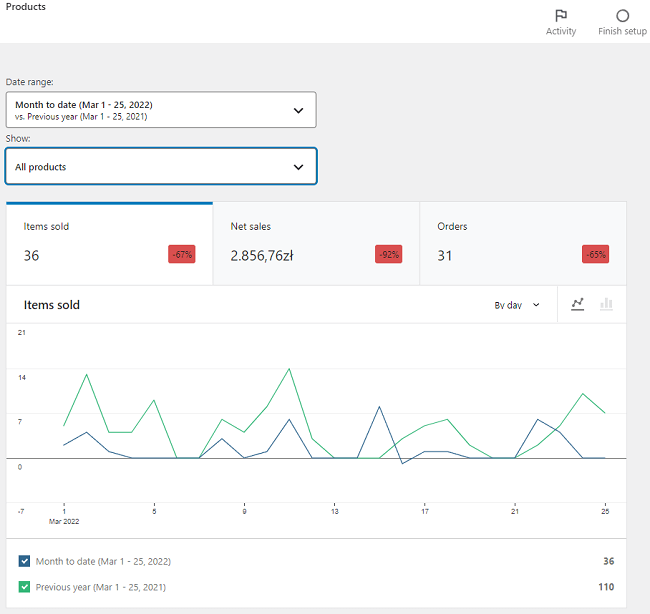
The main panel allows you to track statistics for Items Sold, Net Sales and Orders. A table of products is available below. The multi selector on the right allows you to decide whether the table should include the following data:
- SKU
- Orders
- Category
- Variations
- Status
- Stock
Revenue
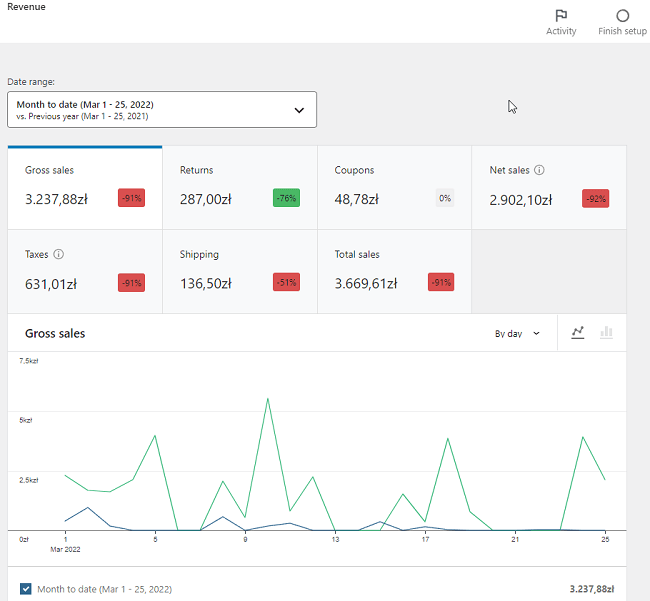
The next tab, Revenue, is structured similarly. At the top, you can specify which dates you want the charts to relate to. Below the tiles of individual charts, you can click through. Selecting one of the tiles displays the chart:
- Gross sales
- Returns
- Coupons
- Net sales
- Taxes
- Shipping
- Total sales
Read those seven in order and you have the whole calculation on one screen: gross sales at the top, the two deductions, the net figure, then tax and shipping added back to reach total sales.
At the very bottom you will find the Revenue table, which you can download as a CSV file. Before you do, select the data you want to include from the multi selector menu, because the export contains the columns currently shown, not everything available.
Orders
The Orders tab has a similar layout to Revenue. At the top there is a date range and the content to be displayed, namely All orders and Advanced Filters.
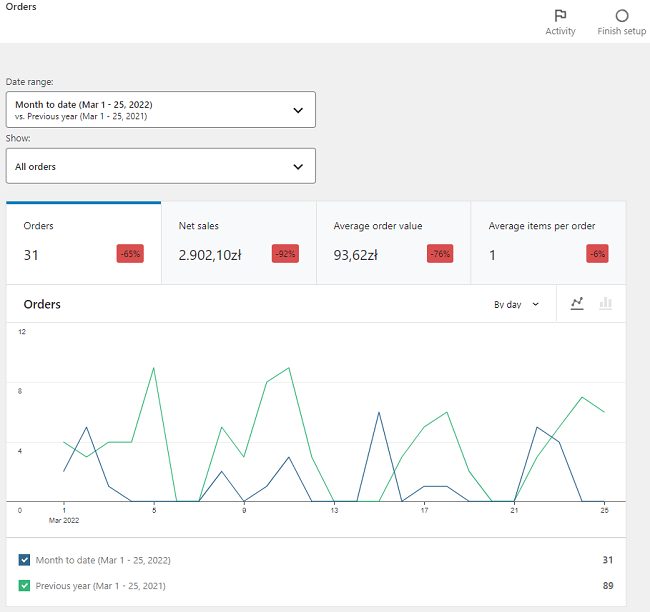
Below there are four tiles: Orders, Net sales, Average Order Value and Average items per order. As with the previous tabs, clicking on one of the tiles launches the chart below.
Advanced Filters has an Add a Filter option. The available filters are Order Status, Products, Variations, Coupon Codes, Customer Types, Refunds, Tax Rates and Attribute. Adding each of these triggers conditional logic allowing you to deepen your data analysis. This is where the Orders report earns its place: filtering by customer type separates new buyers from returning ones, which is a different business question from how much you sold.
The last element of the Orders tab is a table, exportable as CSV, where the multi selector decides the columns:
- Status
- Customer
- Customer type
- Product(s)
- Items sold
- Coupon(s)
Variations
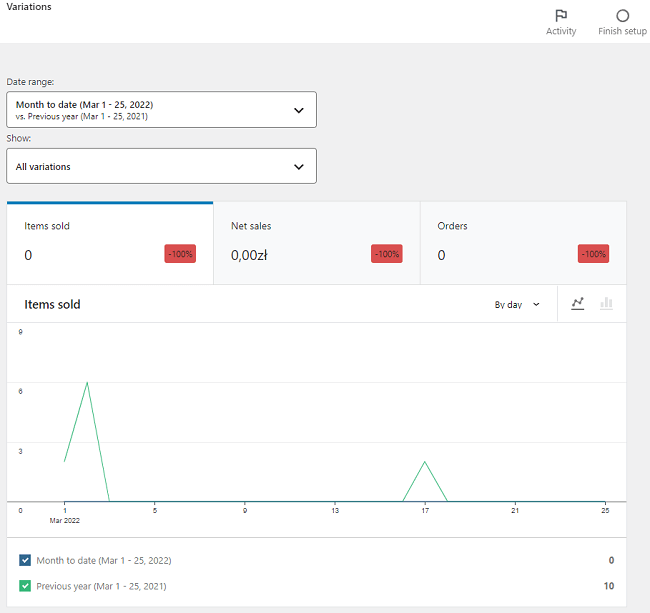
The next tab in WooCommerce Analytics is Variations. Here, as standard, you have the option to select the dates as well as the data to be included in the graphs. There are All Variations, Single Variation, Comparison and Advanced filters. For all selected options, the following data tiles are available: Items sold, Net sales, Orders.
In Advanced Filters you can add conditional logic for Category, Product and Attribute.
This report answers a question the Products tab cannot: which size, colour or flavour actually sells. A product that looks healthy at product level can be one variation carrying four dead ones.
Categories
In Categories, by default, there is a date range to choose from. You can view data for All categories or a single category. It is also possible to compare data between selected categories. The charts offer data on Items sold, Net sales and Orders.
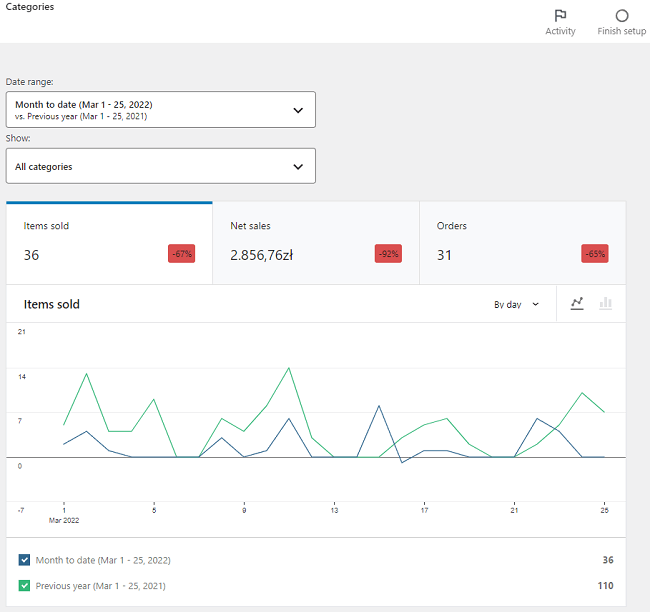
A table of data that can be downloaded as a CSV file containing Net sales, Products and Orders.
Coupons
In this tab you can view data relating to coupons. It is structured like Categories, except that instead of categories you analyze All coupons, a single coupon, or a Comparison between several.
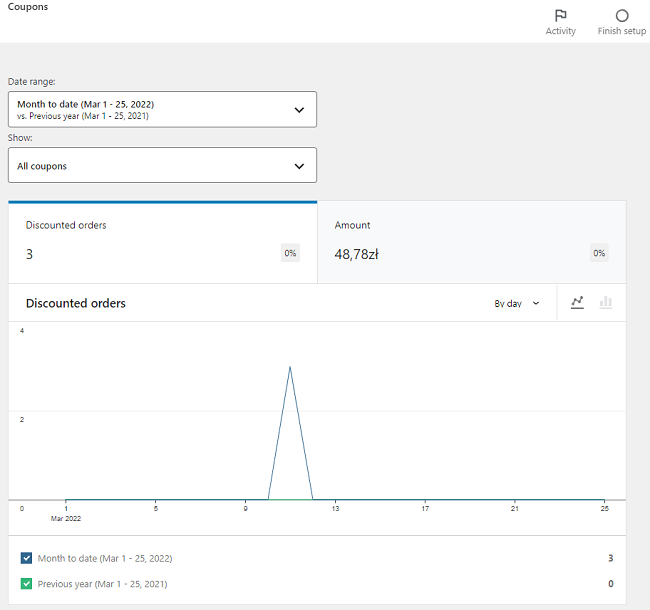
The table can be downloaded as a CSV file, and the menu under the ellipsis lets you manage its columns: Amount discounted, Created, Expires and Type.
One thing to check before reading too much into an empty report. WP Desk telemetry from the same 19,803 stores shows 18% of stores with coupons switched off entirely. If the coupon field is disabled at checkout, this report has nothing to show and that is the expected result, not a bug.
Taxes
In addition to your own date range, you can select a summary for all taxes set in the shop, as well as a comparison of individual tax rates.
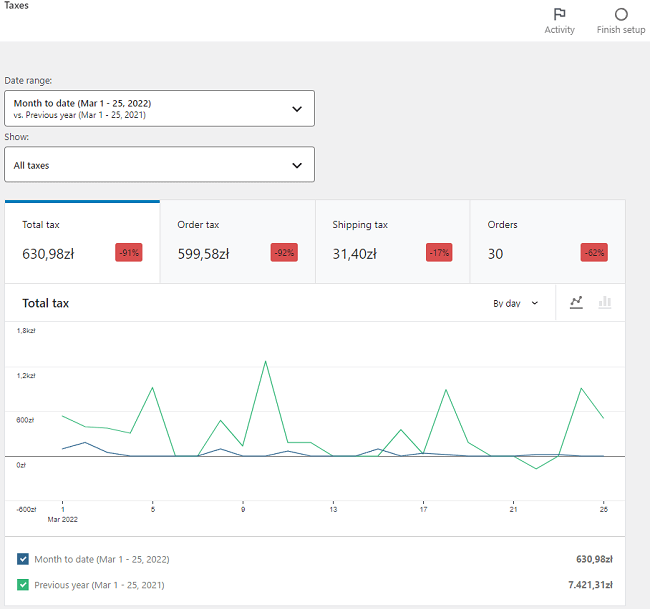
In the tiles with charts below, Total tax, Order tax, Shipping tax and Orders are available. The Taxes table, besides the CSV download, shows the data in the Rate, Total tax, Order tax and Shipping tax columns.
Treat this report as a cross-check, not as an accounting source. It reports what the store charged, which is only correct if the tax rates were correct at the time of each order.
Downloads
This tab is for stores selling downloadable products. It offers its own date ranges and shows All downloads, with Advanced Filters adding conditional logic for Product, Username, Order and IP Address.
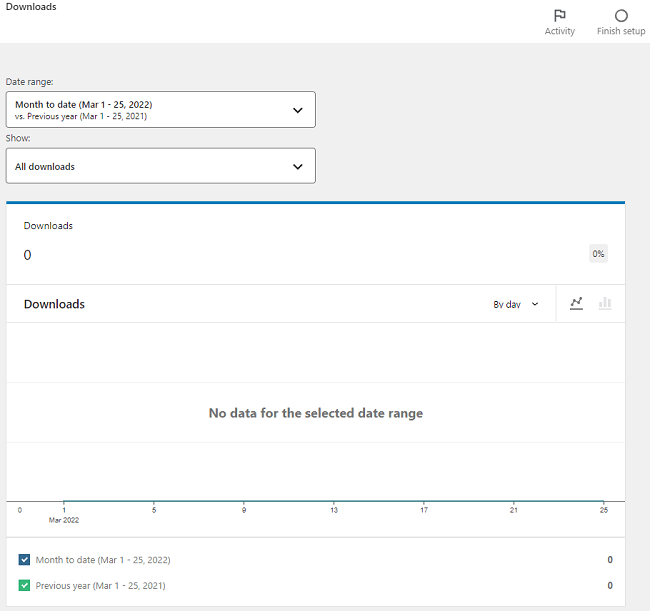
The IP address filter is the one worth knowing about: a single purchase downloaded from a dozen addresses usually means a shared link rather than a keen customer.
Stock
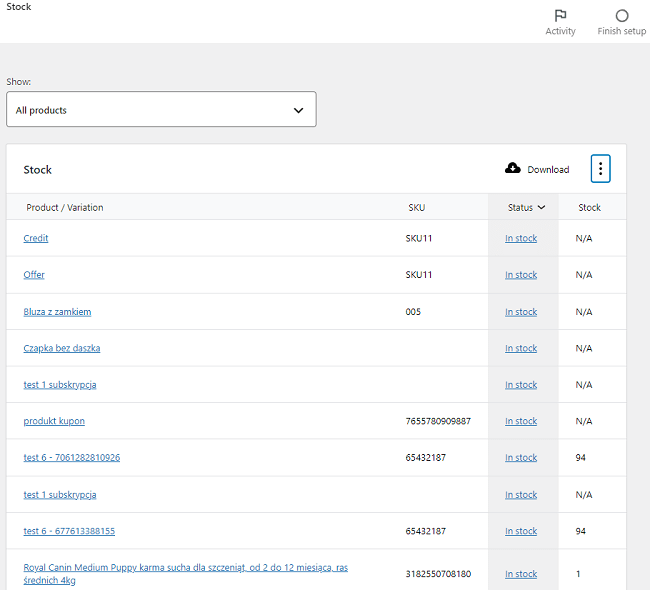
This is one big table showing the stock of each product. You can group products as All products, Out of stock, Low Stock, In Stock, or On backorder. Data from the table can be exported as a CSV file, and the menu under the ellipsis sets the table headings. The available options are SKU, Status and Stock.
Settings
This is the last tab offered by WooCommerce Analytics, and the one that decides whether everything above is accurate.
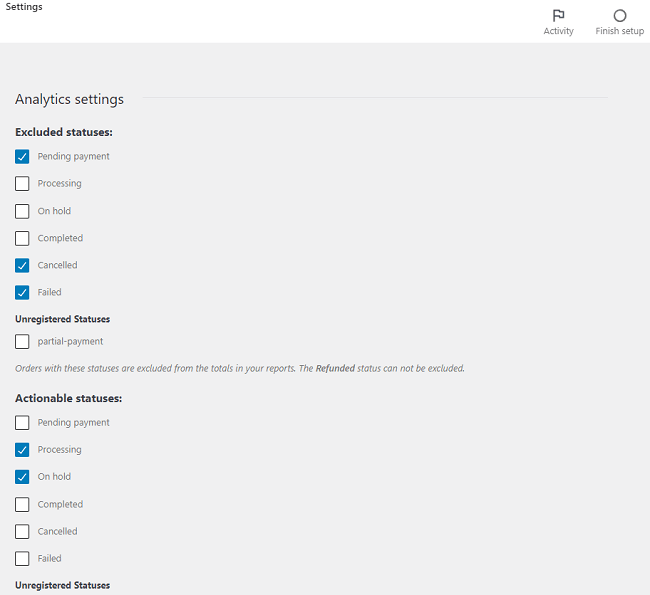
Excluded statuses removes orders with the chosen statuses from all reports and statistics. By default Pending payment, Cancelled and Failed are excluded, which is usually right: those orders were never paid for.
Actionable statuses marks which orders require the store owner’s attention. These appear in the Home screen Orders task. Processing and On hold are the defaults.
The same screen holds the historical data import, which is what you use when the numbers stop making sense.
Why your Analytics numbers do not match your orders
This is the most common complaint about WooCommerce Analytics, and there are three causes.
The first is excluded statuses. If a status is on that list, those orders are invisible to every report, however real the money was. Stores using custom statuses hit this constantly, because a new status is not excluded by default and silently joins the totals.
The second is that Analytics does not read your orders directly. It keeps its own lookup tables, built when an order is placed and updated when it changes. If an import failed, a plugin wrote orders straight to the database, or you migrated a store, those tables fall behind and the reports show a smaller number than the order list. The fix is in Analytics > Settings: re-import historical data and let the scheduled actions finish before judging the result.
The third is simply the metric. An Analytics figure quoted as net sales will never match an order list total, because net sales excludes tax and shipping by design.
WooCommerce Analytics, Reports and Accounting
There are also filters available for searching specific invoices issued in the shop, with the WooCommerce Invoices Advanced Filters plugin.
Analytics tells you what the store recorded. Accounting needs what was documented, which is a different list: issued invoices, corrections and refunds, each with a number and a date. If you need both pictures, see the Flexible Invoices WooCommerce PRO plugin, which also has an add-on for analysing sales based on actual documents and refunds.
Summary
WooCommerce Analytics is twelve reports over the same data, and the useful work is mostly in two places. Set the excluded statuses in Settings so the reports count what your store actually sells, and learn the difference between gross, net and total sales so that nobody in the company is quoting a different number. After that, Revenue answers how much, Products and Variations answer what, Orders with advanced filters answers who, and every table exports to CSV when the question outgrows the screen.
Frequently asked questions
Where is WooCommerce Analytics in the admin?
In the main WordPress admin menu under Analytics, as a separate item next to WooCommerce. It has been part of core since WooCommerce 4.0, so no extra plugin is needed.
Why are some sales missing in WooCommerce Analytics?
Usually one of three reasons: the order status is on the excluded list in Analytics > Settings, the lookup tables are out of sync and need a historical re-import, or you are comparing net sales against a figure that includes tax and shipping.
What is the difference between net sales and total sales?
Net sales is gross sales minus refunds and coupon discounts, with tax and shipping excluded. Total sales adds tax and shipping back, so it matches what customers actually paid.
Which metrics should I watch to improve sales?
Net sales for the trend, average order value for whether baskets are growing, returns as a share of gross sales, and the Variations report to see which versions of a product carry the rest.
How do I export WooCommerce reports for accounting?
Every table in Analytics has a download button that produces a CSV of the columns currently displayed. Set the columns from the ellipsis menu first, because the export follows the screen rather than exporting everything.
Does WooCommerce Analytics count orders that were never paid?
Not by default. Pending payment, Cancelled and Failed are excluded out of the box. Custom statuses added by a plugin are not excluded automatically, so check that list after installing anything that creates its own statuses.
Can Analytics replace an accounting report?
No. Analytics reports what the store recorded at the moment of sale. Accounting needs issued documents with numbers and dates, including corrections, which is what an invoicing plugin produces.
How do I fix Analytics data after migrating a store?
Run the historical data import in Analytics > Settings, which rebuilds the lookup tables from the orders. On a large store it runs in the background through scheduled actions and can take hours, so check that they are processing before re-running it.
